Action Allowlist
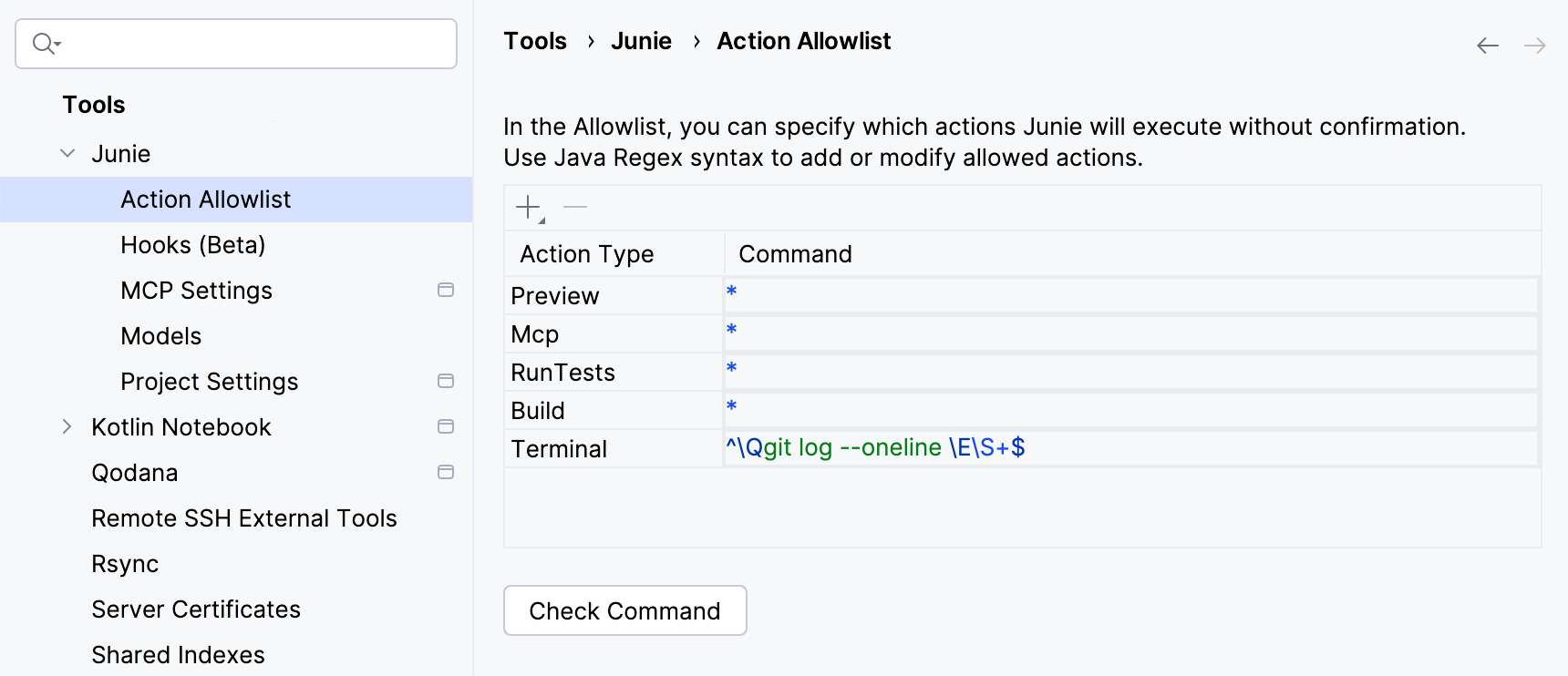
Use the Action Allowlist page to manage the list of actions that Junie runs without user approval. By default, Junie requires user approval for running terminal commands, MCP tools, and other types of actions that are considered to be sensitive by the coding agent.
Add allowed actions
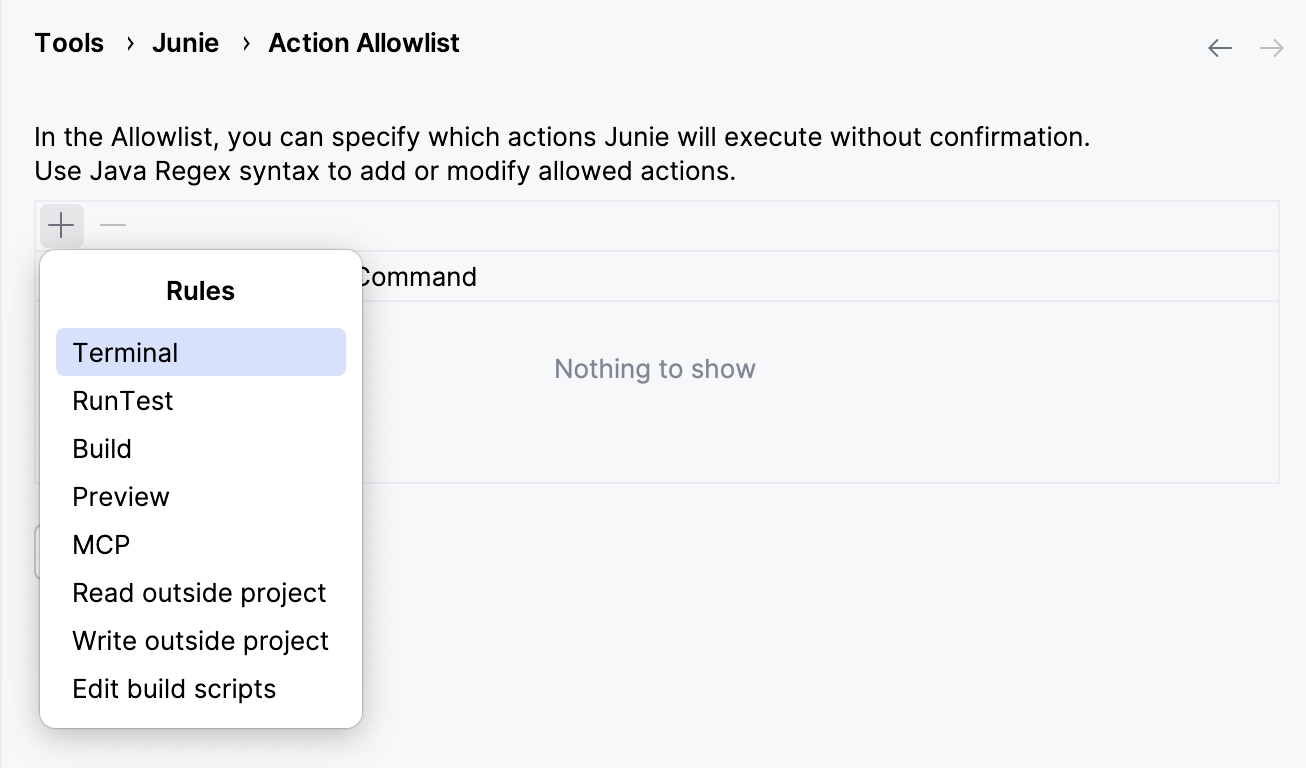
To add a new action or action pattern to the list, click  on the toolbar and select one of the available action rule types. Depending on the rule type, you can specify the exact allowed action, a Regex covering multiple commands, or all actions of a specific type.
Types of Action Allowlist rules
Junie determines the following types of sensitive actions and the rules that correspond to them:
Type | Description |
|---|---|
Terminal | Allows Junie to run the specified terminal commands without user confirmation. |
RunTest | For JetBrains IDEs and languages where Junie can use the IDE’s functionality to run tests (namely, JVM in Intellij IDEA and C# in Rider), allows Junie to run tests from the current project without user confirmation. |
Build | For JetBrains IDEs and languages where Junie can use the IDE’s functionality to build the current project (namely, JVM in Intellij IDEA and C# in Rider), allows Junie to build the current project without user confirmation. |
Preview | For Android Studio and JetBrains IDEs that support Android and Compose development, allows Junie to use the IDE’s functionality to run the build or execute custom code without user confirmation. |
MCP | Allows Junie to execute MCP tools without user confirmation. |
Read outside project | Allows Junie to read files outside the configured project directory without user confirmation. |
Write outside project | Allows Junie to modify files outside the configured project directory without user confirmation. |
Edit build scripts | Allows Junie to edit build scripts for the current project without user confirmation. |
Edit configuration or hidden files | Allows Junie to edit configuration and hidden files (for example, |
Read files with secrets | Allows Junie to read files that may contain secrets (for example, |
Terminal rules
Terminal rules can be added as:
Exact commands, fore example,
git status.Java regular expression (Regex) patterns matching a specific type of commands, for example,
^\Qgit diff \E\S+$.Standard regular expression (Regex) patterns matching a specific type of commands, for example,
^git diff \S+$.
You can add as many Terminal rules as you need to cover all commands that you want to be executed without confirmation.
Example 1: Allowing commands with a fixed number of arguments (one argument)
To match git show <argument>;, use the following Java Regex:
where:
^\Qgit show \Ematches thegit showliteral text exactly, including the trailing space at the end.\Qand\Eare special escape sequences in Java regular expressions that are used to treat a block of text as literal characters, ignoring any special RegEx characters (like*,., or?) that might be inside.[^\s;&|<>@$]+matches exactly one argument (one or more characters), excluding whitespaces or special characters.Excluding whitespaces ensures that the expression doesn't match spaces between arguments.
Excluding
;,|, and&, ensures that multiple commands cannot be chained together, and excluding<,>,@, and$ensures that dangerous operations (redirects, variable expansion, etc.) cannot be enabled.+indicates that the expression must match at least once, sogit showwithout an argument won't match.
$matches the end of the line.
Example 2: Allowing commands with a fixed number of arguments (two arguments)
To match git cat-file <argument1> <argument2>, use the following Java Regex:
It's similar to the previous example, but with exactly two arguments allowed for git cat-file.
Example 3: Allowing commands with either one or none arguments
To match both git diff and git diff <argument>, use the following Java Regex:
It's similar to the previous two examples, except for the * quantifier instead of + at the end of the expression. This matches either zero or more characters for the argument.
Example 4: Allowing all git commands
To match all git commands, use the following Java Regex:
It's similar to the previous examples, but with .* matching any remaining arguments or flags following the git command.
MCP rules
At the moment, adding an item of the MCP Rule type to the Action Allowlist will authorize Junie to run all MCP tools without user confirmation. Defining the specific MCP servers and tools that can be run without confirmation is not possible yet.
Other rule types
With other rule types, adding an item to the Action Allowlist will authorize Junie to run all actions of this type without approval.
Check allowed commands
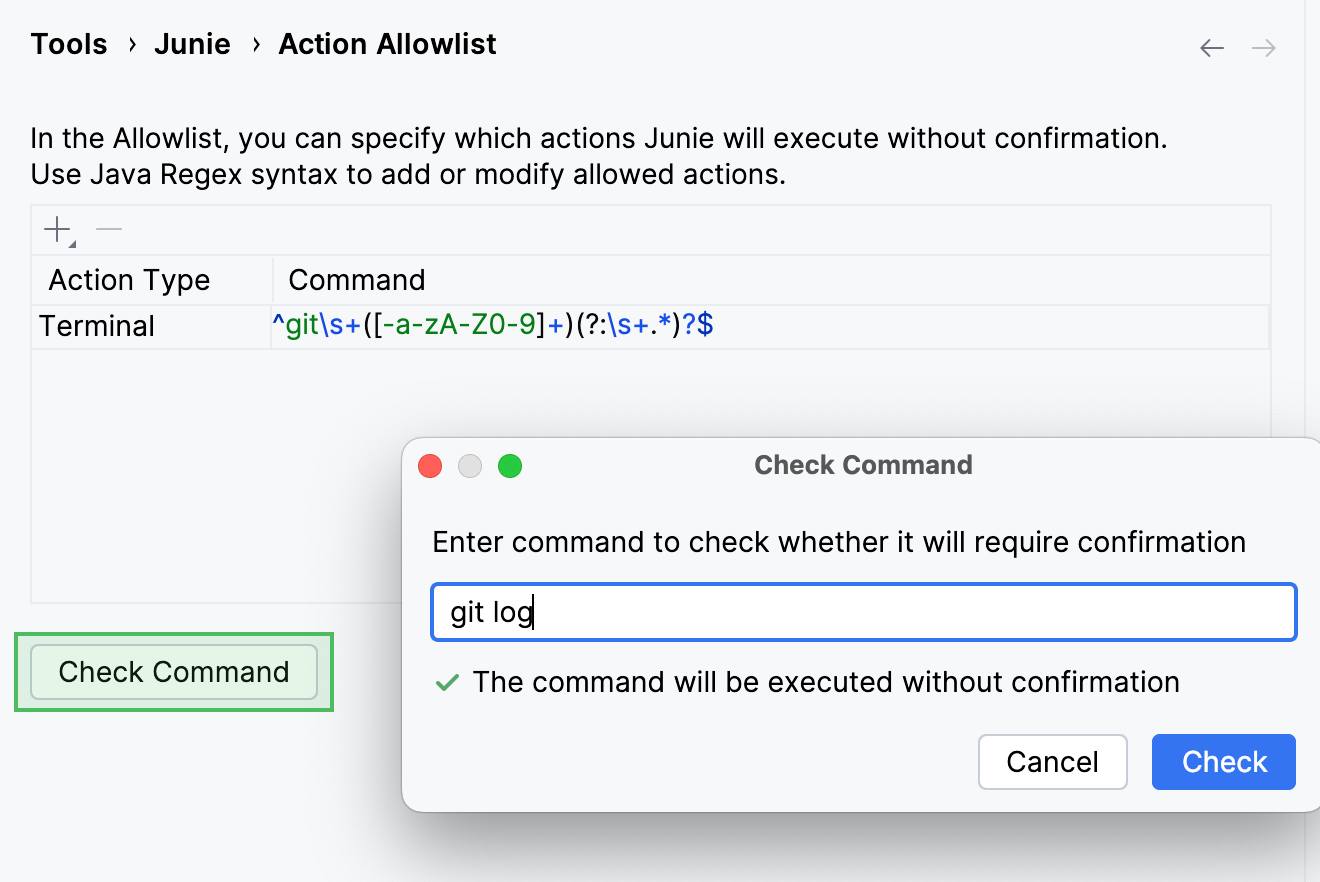
To check if a specific command is covered by the regular expressions on the list, use the Check Command button.