Add and configure MCP servers
You can connect Junie CLI to external tools via Model Context Protocol (MCP). Junie CLI uses the same MCP JSON configuration as Junie in JetBrains IDEs.
The /mcp slash command shows the list of configured MCP servers and the MCP Installation Assistant to guide you through adding, editing, or troubleshooting configs for MCP servers.
In ACP (Agent Client Protocol) clients, /mcp is a read-only listing: it shows local MCP servers (with runtime status and source) and any MCP servers the client passed at session init. It does not open the installation assistant or edit configs. To change local servers from ACP, edit .junie/mcp/mcp.json/~/.junie/mcp/mcp.json (or use the interactive TUI /mcp screen).
MCP Installation Assistant
Junie's MCP Installation Assistant is an AI helper that streamlines and simplifies the process of adding new MCP servers. It guides you through adding MCP servers from a registry of pre-configured servers or from scratch.
When adding a server from the registry, Junie CLI automatically configures the correct command or URL and prompts the user for any required secrets or environment variables.
When adding a server from scratch, it searches the official MCP registry for the proper server configuration, prompts for parameters, env variables, secrets, or API tokens if needed, adds the server configuration to the mcp.json file, and verifies the server startup.
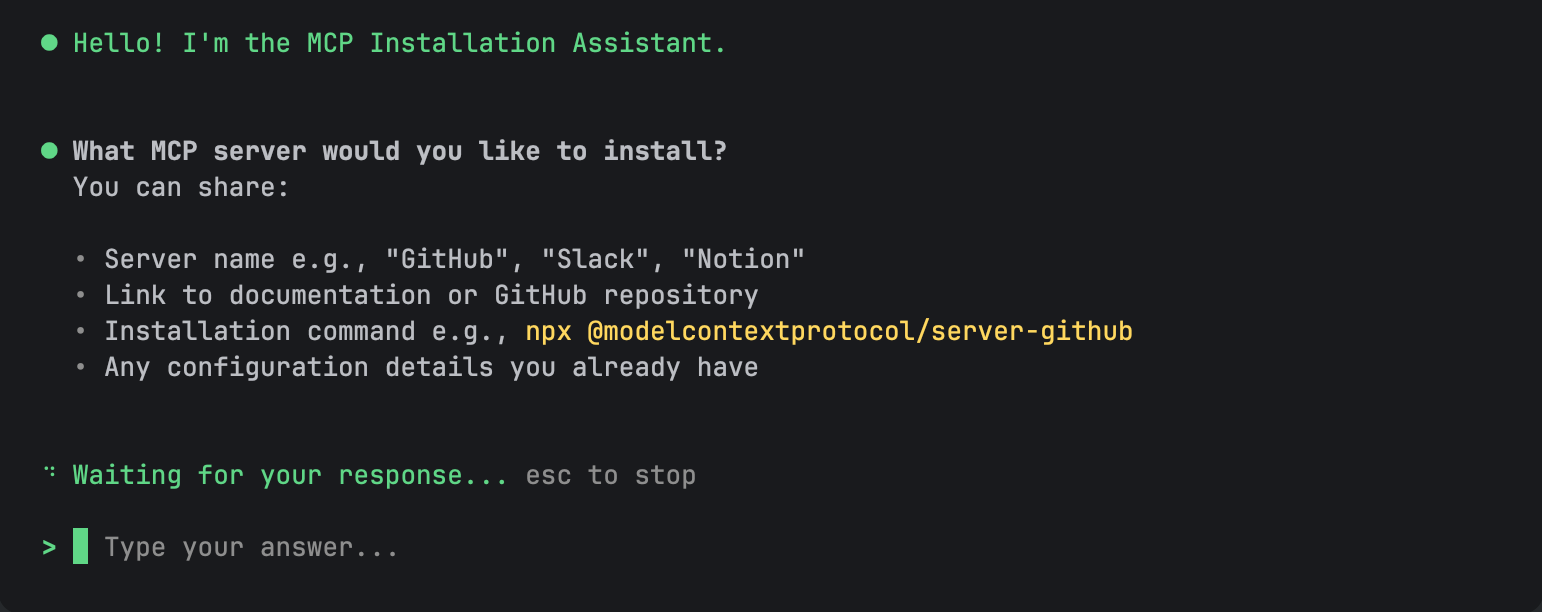
Add an MCP server
Use the
/mcpcommand to open the MCP server configuration screen.Press
Ctrl+Ato open and search the list of pre-configured MCP servers.If the MCP server you need is not on the list, press
Ctrl+Aonce again and follow Installation Assistant's prompts to set up the server configuration from scratch.Select the server installation scope:
Project scope: MCP server configs are stored in the
.junie/mcp/mcp.jsonfile at the root of your project. This file can be checked into version control and shared across all team members.User scope: user-scope MCP configs are stored in
~/.junie/mcp/mcp.jsonand available across all projects on your machine while remaining private to your user account.
Select the server connection type:
Remote: connect to a hosted server via HTTP/HTTPS.
Junie CLI connects to an MCP server hosted on a remote machine or service.
Local: run on your machine (Docker, npx, or binary).
Junie CLI starts an MCP server instance locally, e.g. using the
npxcommand or via Docker.
OAuth authorization
Remote MCP servers that require OAuth authorization are added to the list of configured servers with an Authorization required status. Use MCP Installation Assistant to set up OAuth authorization:
Select the server on the list to open its configuration menu.
Select → Authorize and then follow the steps to login in the respective server's browser page that opens.
Verify that the server's status has changed to Active.
Add an MCP server from JSON configuration
If you have a JSON configuration for an MCP server, you can add it manually directly to the .junie/mcp/mcp.json file at the project or user scope.
The mcp.json file uses the following JSON structure:
Manually added configurations are imported to the list of MCP servers and enabled by default. To verify that the server is available to Junie CLI and active, use the /mcp command.
Request timeout
By default, Junie CLI waits up to 60 seconds for an MCP server to respond to a request. This limit applies to every request to the server: the startup handshake, listing tools, and each tool call. If a server needs more time, for example, for long-running tools or a slow first start via npx or Docker, set the optional timeout field on that server in milliseconds:
The value must be between 1000 (1 second) and 3600000 (1 hour). Values outside this range are ignored, a warning is logged, and the 60-second default is used. Note that the value is in milliseconds, not seconds: "timeout": 60 is rejected instead of being treated as one minute.
List configured MCP servers
To list all configured MCP servers, as well as reconnect, disable/enable, modify, or delete existing configurations, use the /mcp command. The list shows:
MCP server name.
Installation scope (project or user).
Server status (Starting/Active/Inactive/Disabled/Failed/Authorization required).
Configuration for MCP servers is stored in the mcp.json file at the following default locations:
Project scope:
.junie/mcp/mcp.jsonat the root of your project.User scope:
~/.junie/mcp/mcp.jsonon your machine.
You can control where Junie searches for MCP configurations using the following command-line options:
Option | Default | Description |
|---|---|---|
|
| Enable or disable adding MCP servers from default locations (per user / per project). |
| — | Additional folders where MCP servers should be found. Can be specified multiple times. |
Enable or disable an MCP server
The MCP servers connected via MCP Installation Assistant or imported from the mcp.json file are enabled by default.
To disable a server, list all the configured servers with the /mcp command, select the necessary server, and then select the → Disable action. To enable a previously disabled server, use → Enable.
Reconnect to an MCP server
If an enabled server is Failed or Inactive, for example, after its connection dropped, you can retry the connection in one step instead of disabling and re-enabling the server. List all the configured servers with the /mcp command, select the necessary server, and then select the → Reconnect action. The action is not available for Active, Starting, or Disabled servers, or for servers that Junie has not tried to start yet. For servers with the Authorization required status, use → Authorize instead.