Plan mode
In Plan mode, Junie CLI analyzes the codebase with read-only operations and produces a design document for the task before any code is written. You can review the plan, push back on assumptions, and adjust the scope — and only then let Junie CLI implement it.
How Plan mode works
When Plan mode is enabled, Junie CLI focuses on understanding the task and shaping a concrete implementation plan rather than modifying the project:
Junie CLI uses read-only operations to explore the codebase, configuration, and any context attached to the prompt.
Instead of editing files, Junie CLI produces a plan that captures the scope, key decisions, and the reasoning behind them.
The plan is treated as a living design document: when requirements change in the same session, the plan is updated alongside them.
Once the plan is confirmed, Junie switches to implementation and applies the changes described in the plan.
Plan mode is most useful for non-trivial tasks where alignment on intent and approach matters more than producing code as fast as possible.
Enable Plan mode
You can enable Plan mode in the following ways:
Press
Shift+Tabin the prompt area to cycle through the default mode, Plan mode, and Debug mode (Debug mode appears in the cycle only when it is available).Run the
/planslash command to toggle Plan mode. To start in Plan mode with your prompt submitted immediately, type/plan <prompt>, for example:> /plan refactor commandsUse the
--plancommand-line flag to start Junie CLI directly in Plan mode. Combine it with--promptto auto-submit a prompt in plan mode:junie --plan junie --prompt "Refactor the commands module" --plan

When Plan mode is active, the prompt area shows a corresponding indicator, and the agent's behavior changes to plan-first.
Review and refine the plan
After Junie CLI proposes a plan, the session pauses and waits for your input. The prompt area shows a set of actions you can pick from:
Confirm and implement: accept the plan and let Junie CLI proceed with the implementation using the agreed-upon scope and decisions.
View the entire plan (
Ctrl+P): open the dedicated plan view with the full design document.Open
<plan-file>: open the saved plan file (Markdown) in your default editor or viewer.Save the plan and stop: keep the plan file on disk and end the session without implementing it.
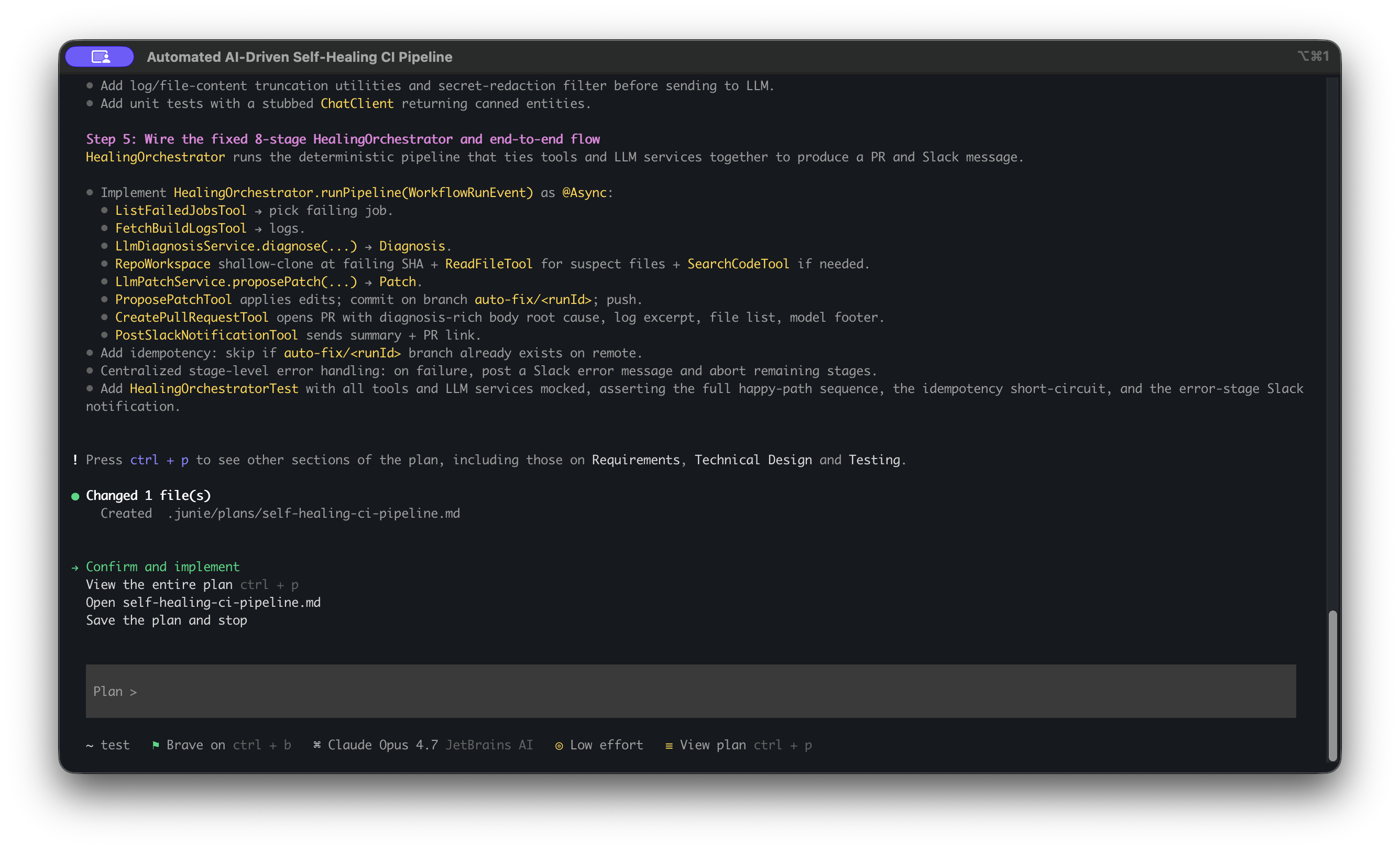
You can iterate on the plan as many times as needed before implementation starts. This keeps course corrections cheap — adjusting a plan is much faster than reverting code that does not match your intent.
Plan view
Press Ctrl+P at any time during a plan-mode session to open the dedicated plan view. The plan view shows the proposed design document split into tabs. The exact set of tabs depends on the task and may vary between sessions, but typically you will see something like:
Requirements: what the change should achieve: goals, scope, user stories, functional and non-functional requirements.
Technical design: how the change is going to be implemented: the affected modules, key decisions, data flows, and trade-offs.
Testing: the test strategy and specific test cases that will verify the implementation.
Delivery steps: the concrete steps Junie CLI plans to take during implementation, in order.
Simple tasks may have fewer sections, while more complex tasks may include additional design sections alongside the delivery steps.
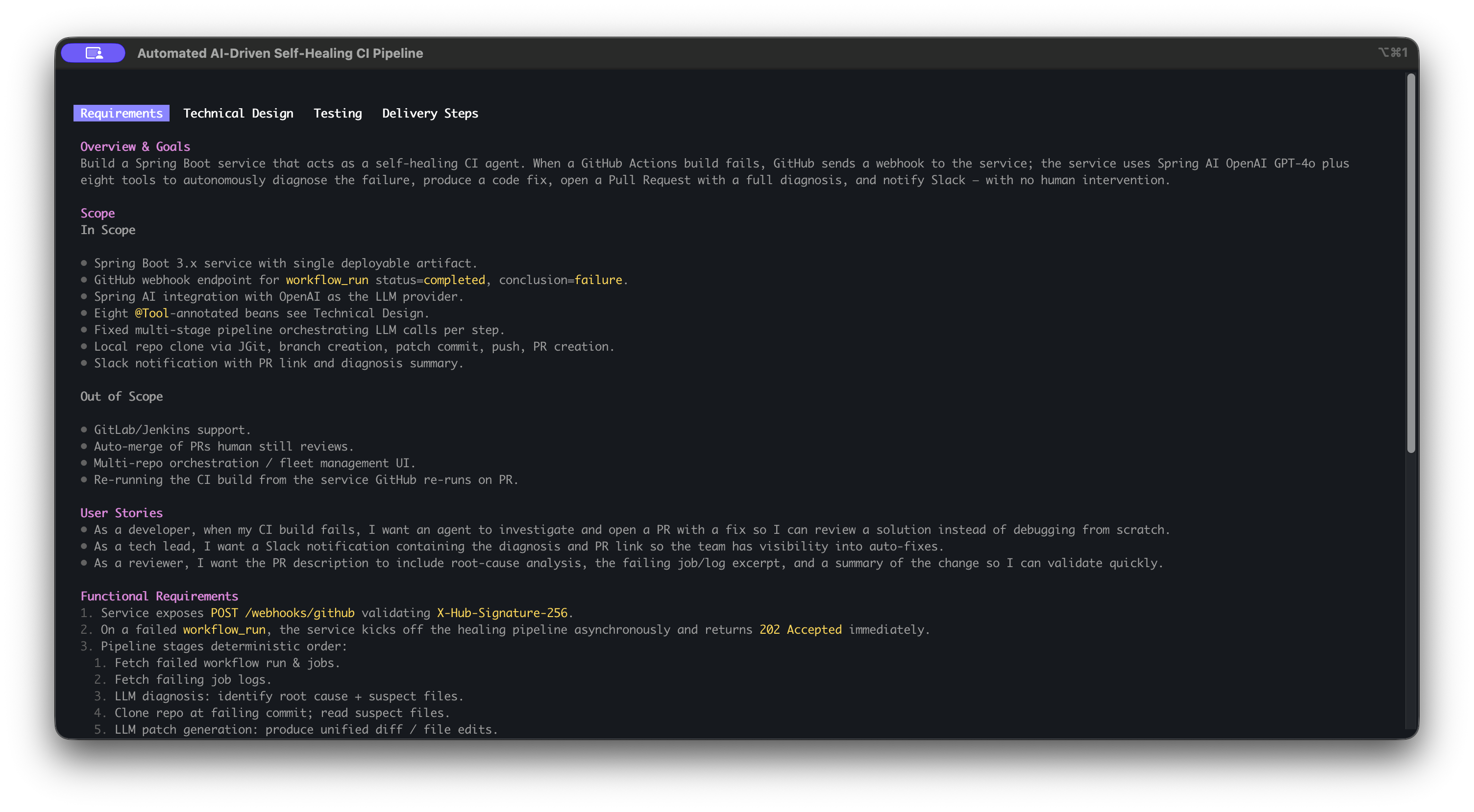
Use Tab or the arrow keys to switch between tabs. Press Ctrl+P again to return to the chat.