Quickstart
Junie CLI is the agentic coding tool by JetBrains that provides an interactive terminal interface for developers to review, write, and modify code.
Supported operating systems
Junie CLI is available on Linux, macOS, and Windows.
Step 1: Install Junie CLI
In the terminal or command prompt of your choice, run:
Step 2: Start Junie in your project
Navigate to the root directory of the project where you want to use Junie CLI and run junie:
Step 3: Authenticate
On the Junie welcome screen, select one of the available authentication options:
Continue with JetBrains account
Use Junie CLI as part of your subscription plan with JetBrains. When selecting this option, you'll be redirected to the JetBrains Junie login page in your browser.
Use a Junie API key
Run Junie CLI with usage-based billing. When selecting this option, you'll be prompted to provide an access token. To generate your
JUNIE_API_KEYaccess token, go to junie.jetbrains.com/cli.Use your own API key (OpenAI, Anthropic, Google, xAI, OpenRouter, GitHub Copilot)
Use your own API keys from OpenAI, Anthropic, Google, xAI, OpenRouter, GitHub Copilot, or other third-party LLM providers. Junie CLI uses these API keys to send requests to LLMs directly without requiring a JetBrains AI subscription. For details, see Bring Your Own Key (BYOK).
BYOK can be used on its own or together with JetBrains Account authorization or Junie API key. If a model is available through both the BYOK API key and JetBrains AI subscription, the requests are billed to your BYOK provider directly.
Use custom models and endpoints
Connect Junie CLI to custom or self-hosted LLM endpoints, such as LiteLLM, Ollama, or LM Studio.
Step 4: Type your prompt
Type the prompt in the interactive CLI, for example:
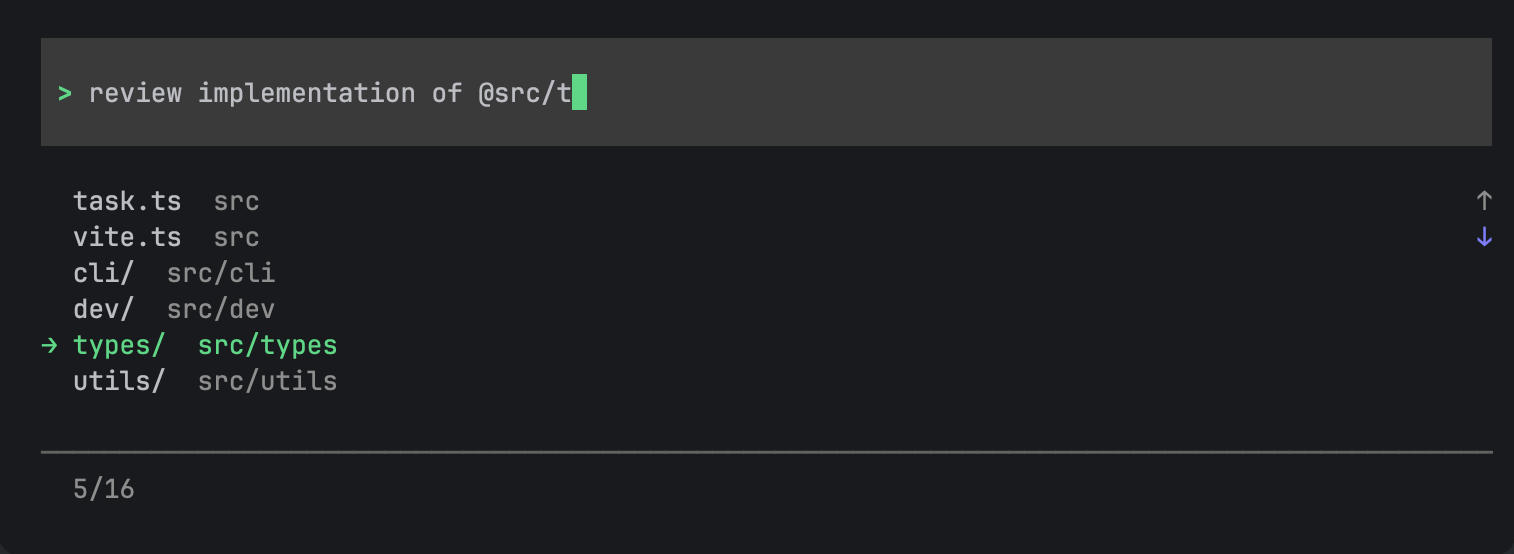
Use @ to attach a file or folder from the current project to the request context. To see the list of available slash commands and use them, type /.
Real-time follow-ups
You can type follow-up prompts while Junie CLI is working on the task without waiting for it to finish. The added clarifications are appended to the initial prompt and taken into account by the agent immediately.
Reference files and directories
Use @ to quickly reference files or directories in your prompt.
You can also drag and drop files and images into the terminal window to reference them.
Image inputs
Drag and drop or reference screenshots or design specs in the prompt for Junie CLI to read the image details. Junie CLI accepts all common image formats such as PNG and JPEG.
Search the prompt history
Junie CLI preserves your prompt history across all sessions and application runs.
To search the prompt history, use Ctrl+R, and then navigate through the results using Up and Down arrow keys.
Slash commands and shortcuts
Slash commands allow you to access various Junie CLI features directly from the prompt. Type / in the prompt to see and use the available slash commands.
Some built-in slash commands accept user prompts as arguments. For example, /new fix tests starts another live session with fix tests in the prompt, and /plan refactor commands enables plan mode and submits refactor commands immediately.
In addition to the built-in commands, you can add custom slash commands for frequently used prompts and repetitive tasks.
To see all available shortcuts, type ?.
Run shell commands
You can run shell commands without leaving Junie CLI by prefixing it with !, for example:
Command approval
For running potentially sensitive actions, such as executing most of the terminal commands, editing files outside the project, or invoking MCP tools, Junie CLI will ask for approval from the user.
Action Allowlist
When Junie CLI stops for user approval, you can select the → Always allow option to add the indicated command to the Action Allowlist. Once on the Action Allowlist, the command will always be executed without user approval in the future Junie CLI runs.

The full list of allowed commands and command patterns is stored in the ~/.junie/allowlist.json file. You can also edit this file manually to add or remove allowed or restricted commands and patterns. For details, see Action Allowlist configuration.
Brave mode
Brave mode controls how much Junie CLI relies on user approval before running potentially sensitive actions. It has three levels that you can cycle through with the /brave slash command or the Ctrl+B shortcut:
Off – Junie CLI asks for approval for every potentially sensitive action that is not on the Action Allowlist. This is the most conservative behavior.
Auto – Junie CLI classifies terminal commands with a safety check and automatically approves the ones it considers safe, while still asking for approval for risky or unrecognized commands and for other sensitive actions.
On – Junie CLI executes all potentially sensitive actions without user approval.

Sandbox mode
Sandbox mode wraps every agent-issued terminal command in an OS-level sandbox (sandbox-runtime, srt) and restricts native edit tools. It reduces the impact of accidental destructive commands by limiting filesystem access, including when brave mode is on.
Enable it at launch with junie --sandbox, or toggle it mid-session with the /sandbox slash command. The toggle belongs to the current session, not a global preference. New sessions start with sandbox mode off unless you use --sandbox; resuming a saved session restores its sandbox setting only after successful runtime verification. A toggle applies to the next agent task, not one already running. When launched with --sandbox, the /sandbox command cannot change the mode in either the TUI or ACP and reports the override. The TUI prompt footer shows Sandbox on or Sandbox off.
Sandbox mode is available on macOS and Linux. It is not available on Windows. ACP clients also support /sandbox and a Sandbox session configuration option. Bare /sandbox toggles the mode; ACP also accepts /sandbox on and /sandbox off. These arguments are not supported in the TUI. Enabling sandbox mode validates the runtime and policy; a failed activation leaves sandbox mode off. Repair the runtime or policy and enable it again to retry. ACP activation errors explain runtime, policy, or verification failures and include recovery instructions: fix the reported problem and turn Sandbox on again to retry, or run /sandbox off to continue without sandboxing. In ACP, /sandbox on replies with the same notice as the TUI: the policy file path, whether the network is filtered or unrestricted, and whether the policy was just created with defaults. It also says the change applies from the next prompt. /sandbox off replies with the session's summary of blocked operations, and a request that does not change the mode reports that sandbox mode is already on or off. While sandbox mode is on, the description of the Sandbox configuration option shows the network status. After a failed activation, it says that terminal commands are blocked and how to recover. After failed activation or restoration, terminal execution remains blocked until verification succeeds or you explicitly opt out with /sandbox off or the Off configuration option. If restoring a saved session's sandbox mode fails, the TUI shows an error at startup with the diagnostic: run /sandbox to retry or choose Continue without sandboxing. A prompt sent while execution is blocked fails with a message that lists the TUI and ACP recovery commands. You can always turn sandbox mode off, even if the runtime is broken. An explicit opt-out after failed restoration saves sandbox mode as off, so resuming the session does not repeat the failed restoration. It allows subsequent tasks to run without sandboxing; already-running sandboxed tasks keep their protection.
What is restricted: terminal commands and native edit tools (including search_replace, create, apply_patch, and undo_edit) can write only to your project directory, its git directory, temp directories, and a curated set of common tool caches (~/.gradle, ~/.m2, ~/.npm, and similar). Reads are unrestricted except for ~/.ssh, which is unreadable apart from config and known_hosts (see Git over SSH below). Network access is unrestricted by default: agent commands reach the network directly, while the filesystem restrictions stay fully in force.
The policy is stored in ~/.junie/sandbox.json, which Junie creates the first time you enable sandbox mode with every default path listed explicitly and empty domain lists. Junie never automatically rewrites this file after creating it, so existing policies keep their current network setting and domains. Only the global ~/.junie/sandbox.json is used; a project-local .junie/sandbox.json is ignored (with a warning), so a cloned repository cannot widen its own sandbox.
Turning the network filter on: set "unrestricted": false in the network section and populate allowedDomains with the hosts agent commands may reach. srt then denies unlisted hosts and reports blocked connections; deniedDomains can narrow the allowlist further. Domains use example.com or *.example.com form and must not contain ports, schemes, or paths. Unrestricted mode requires the JetBrains build of srt; an upstream npm runtime can be used only with the network filter enabled.
The global policy file stays on the terminal sandbox's deny-write list. You can explicitly ask the agent to edit it, for example: "Add api.example.com to network.allowedDomains in ~/.junie/sandbox.json using an edit tool." The agent must use a native edit tool, such as search_replace or apply_patch, that explicitly names only ~/.junie/sandbox.json, not an alias, wildcard, search result, or a patch that touches other files. Shell commands cannot make this change while sandboxed. Junie CLI shows the exact path and before/after content and requires you to give a fresh Allow once approval for every change, including undo. Your request alone is not approval; brave mode and saved approvals cannot bypass this confirmation. This policy-edit flow also works with sandbox mode off. Junie CLI validates the entire proposed policy before writing it atomically. A successful approved edit updates both native edit restrictions and terminal sandbox settings for the next tool call in the current agent session. A denied or invalid edit leaves the previous validated policy in force. Manual edits outside Junie still require toggling /sandbox off and on before a new task (or restarting Junie); the active session never rereads unapproved content.
The file supports these dynamic forms in path entries: ${PROJECT_DIR}, ${TMPDIR}, ${GIT_DIR}, ${GIT_COMMON_DIR}, ${SSH_AUTH_SOCK} and a leading ~. Anything else must be a literal absolute path — glob patterns are not supported. Besides allowWrite/denyWrite/denyRead, the file has an allowRead list that re-allows single paths inside a denied directory, network.allowUnixSockets for the sockets a command may connect to, network.allowAllUnixSockets for Linux, network.allowSystemCertificateValidation (see Go-based tools below) and network.unrestricted.
Git in worktrees and separate git directories: git writes almost nothing inside the working tree — the index, HEAD, refs, objects and lock files all live in the git directory. In a linked worktree, a submodule or a separate git directory that directory is outside the project, so git add, git commit, git stash, git checkout and git fetch would all fail under the sandbox. Junie asks git where its directories are and automatically allows them after verifying that the external metadata belongs to the current worktree. Linked worktrees and submodules include this association; a separate git directory must set its local core.worktree to the project path. If you disagree, list ${GIT_DIR}/${GIT_COMMON_DIR} under denyWrite in ~/.junie/sandbox.json.
Git over SSH: your private keys stay private — ~/.ssh is on the deny-read list, with only config and known_hosts re-allowed so ssh can still resolve a host and verify its fingerprint. What that means depends on your setup:
With an
ssh-agentrunning (the usual case, including 1Password andssh-add), git can authenticate through the agent without reading a private key, provided the socket policy and network access permit it. On macOS, the default policy allows the socket fromSSH_AUTH_SOCK. On Linux,network.allowAllUnixSocketscontrols socket access; newly created Linux policies set it totrue, while an omitted field in an existing policy remainsfalse.Without an agent, there is no key to read and no agent to ask, so pushing over SSH fails by design. Use an
httpsremote or theghCLI, which authenticates with a token. The/sandboxmessage in the TUI and ACP tells you which of the two cases you are in.
If you keep your keys elsewhere, or use an IdentityAgent that does not export SSH_AUTH_SOCK, add that socket to network.allowUnixSockets in ~/.junie/sandbox.json on macOS. Linux ignores per-path socket exceptions. Do not add private keys to allowRead. With network filtering enabled on macOS, SSH tunnelling can fail because the system's nc cannot authenticate to the proxy. Detecting an agent socket does not guarantee SSH connectivity.
Go-based tools (gh, kubectl, gcloud, terraform): Go binaries ship no CA bundle and ignore SSL_CERT_FILE on macOS — they validate every certificate chain through the system trust daemon. The macOS sandbox blocks that service by default, which makes every HTTPS call from such a tool fail with tls: failed to verify certificate: x509: OSStatus -26276, no matter which domains are allowed. Junie therefore sets network.allowSystemCertificateValidation to true in the default policy, so gh works out of the box — including as the token-based way out when SSH pushes are unavailable. The trade-off is that the trust daemon itself becomes a channel a malicious command could push data through; set the key to false in ~/.junie/sandbox.json if you do not need Go-based tools. The key has no effect on Linux, where nothing routes certificate validation through a system service.
Before enabling sandbox mode, Junie starts the real runtime with the generated settings and checks that a controlled forbidden write is blocked. With network filtering enabled, it also checks that a direct connection to a local test listener is blocked. An intentionally unrestricted network is not reported as isolated. These are startup checks, not a proof against every possible escape.
If interactive startup verification fails, Junie shows the original diagnostic and offers Retry. Cancelling keeps subsequent agent execution blocked. To proceed unprotected, explicitly choose Continue without sandboxing. A command that was already running is not retroactively stopped. Junie never runs the setup script or elevates privileges automatically.
One-time setup on Ubuntu: if sandbox startup is denied and AppArmor's user-namespace restriction is enabled, Linux packages offer Review Setup with the absolute path of their bundled junie-sandbox-setup.sh. Inspect it and run it with --check in another terminal to see diagnostics and the exact proposed profile without administrator access. If supported, run the displayed sudo /bin/bash -p -- /absolute/path/junie-sandbox-setup.sh command. The script shows its changes and asks for confirmation before applying them. It grants the system /usr/bin/bwrap permission to create user namespaces; other applications using that executable also benefit. Junie still runs as your normal user. It does not disable AppArmor globally, download code, install packages, or overwrite existing administrator policy. Missing dependencies and conflicting policy are reported with next steps. --remove removes only its own unchanged addition after confirmation.
Return to Junie and select Retry. Only successful unprivileged verification enables the sandbox. Ordinary launches need no wrapper, and setup survives reboots. Containers or organization-enforced restrictions may still require an administrator's help. Other startup errors retain their diagnostics without recommending this system change.
srt gives each sandboxed command its own environment — a private TMPDIR plus proxy and certificate variables that are only valid for that one invocation. Junie strips these from the shell state it carries between commands and restores whatever the command started with, so they never leak into your session or into the next command.
Sandbox and brave mode: your brave-mode preference is remembered separately for sandboxed and non-sandboxed sessions. For example, you can keep brave mode On while sandboxed (the default when you first enable sandbox mode) and Off otherwise — toggling /sandbox automatically swaps the effective brave-mode value.
Violation monitoring: recorded denials appear above the prompt during a task and remain in the transcript afterward. Expand the note to see operations, paths or hosts, occurrence counts, and command previews. /sandbox also includes the session breakdown.
On macOS, filesystem reports come from the system sandbox log. On Linux, Junie uses the system /usr/bin/strace without administrator access to observe denied write-intent and metadata syscalls during sandboxed commands. Activation tests this with a protected canary before enabling monitoring. Missing strace, restricted tracing, or an incomplete trace produces a monitoring warning; sandbox protection remains active. Install strace through your distribution's package manager if needed, then re-enable /sandbox to retry.
Linux reports include the syscall's error, such as EROFS (read-only filesystem). EACCES and EPERM may also come from ordinary file permissions, so these reports do not claim that every denial was caused by the sandbox. Tracing adds overhead and includes runtime helper processes. This is diagnostic monitoring, not a complete audit: denied reads, direct network attempts, unrecognized syscalls, and some ambiguous or truncated paths are not covered. Filtered proxy denials are reported on both platforms. An empty report does not prove that nothing was blocked.
Linux reports omit denials for the application tracing endpoints trace_marker and trace_marker_raw under /sys/kernel/tracing/ and /sys/kernel/debug/tracing/, including their instances/<name>/ equivalents. This only suppresses reports; access remains restricted. Other tracing controls are still reported.
Prerequisites: macOS or Linux. EAP packages ship the JetBrains build of srt. Linux packages also include its matching apply-seccomp helper and the readable setup script beside the launcher. Linux additionally needs system bubblewrap, socat, and ripgrep. Source/JAR runs need a compatible srt on PATH or in JUNIE_SRT_PATH. The upstream npm runtime works only after setting network.unrestricted to false and configuring domains. Sandbox mode is not supported on Windows. If srt is missing or the platform is unsupported, enabling the sandbox fails with an actionable error instead of running unprotected.
Plan mode
In plan mode, Junie CLI analyzes the codebase with read-only operations and produces a design document for the task before any code is written. Toggle plan mode with the Shift+Tab shortcut or the /plan slash command.
You can also start Junie CLI directly in plan mode using the --plan flag:
For details, see Plan mode.
Debug mode
In debug mode, Junie CLI acts as an AI debugging assistant that manages breakpoints, inspects runtime state, and evaluates expressions against a live debugger session in a connected JetBrains IDE. Toggle debug mode with the Shift+Tab+Tab shortcut or the /debug slash command. For details, see Debug Mode.
Local code review
Use the /review slash command to run a code review of your local changes before you commit them. Junie CLI uses the same review backend as automated code reviews on GitHub, so the feedback you get locally is consistent with what would be reported on a pull request.
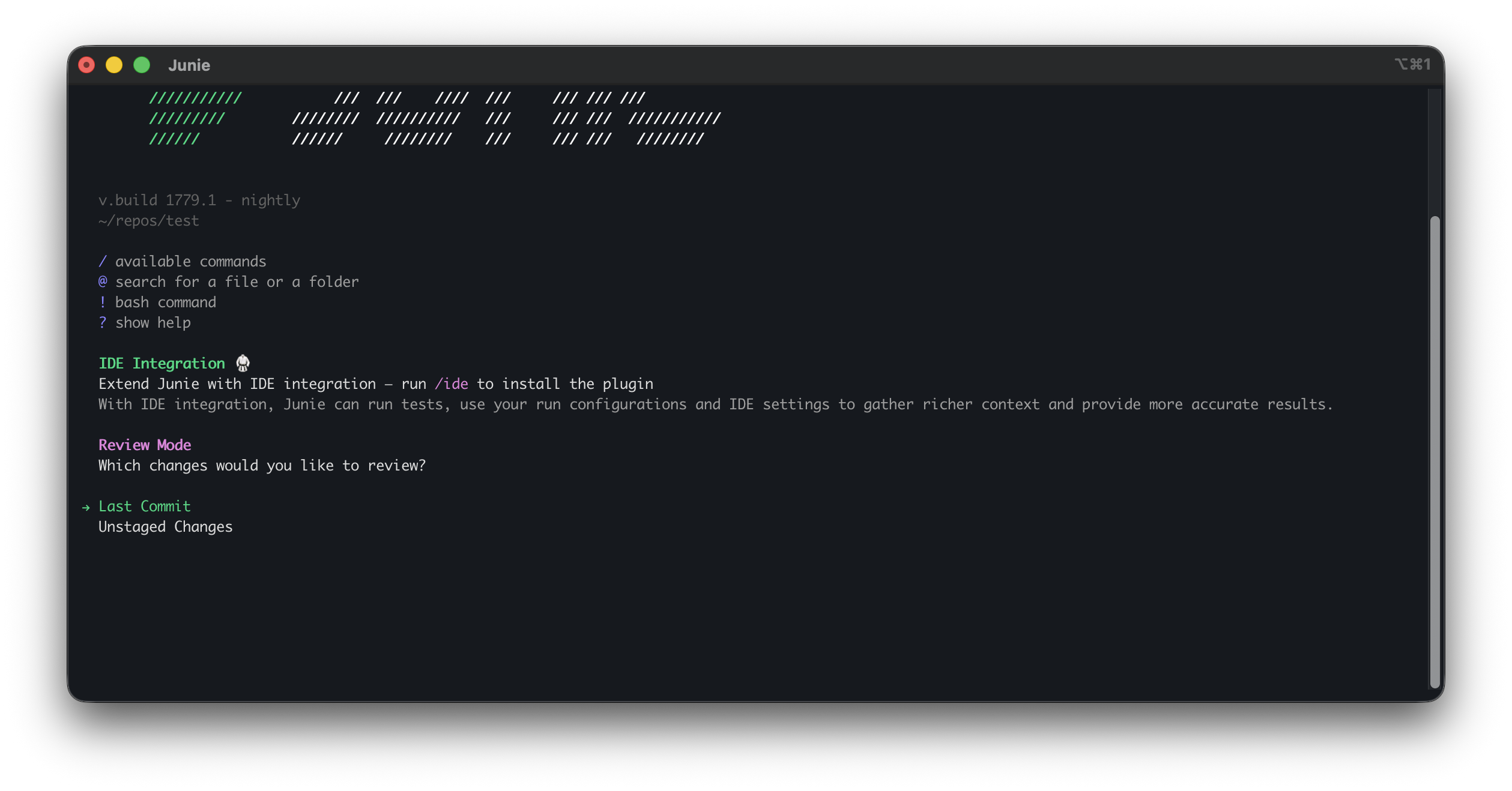
When you run /review without an argument, Junie CLI detects the git state of the project and offers a wizard with only the review targets that make sense in the current state:
Changes compared to main: review your current branch against
main. Shown only when amainbranch exists and you are not currently on it (there is nothing to compare if you are already onmain).Last Commit: review the diff of the most recent commit. Always available as long as the project has at least one commit.
Staged Changes: review what you have added to the index. Shown only when the index is not empty.
Unstaged Changes: review changes that are not yet staged. Shown only when there are actual unstaged changes in the working tree.
Pick an option, and Junie CLI will start a review task that comments on the selected diff. Below the list there is also a text field for any other target, so you are never limited to the offered options: type a commit, a branch, a revision range such as origin/main..HEAD, a number of recent commits, or plain review instructions.
You can also name the target right after the command. Junie CLI works out what to review from your text: a commit (/review a1b2c3d), a branch to compare against (/review release), a revision range (/review origin/main..HEAD), a number of recent commits (/review the last 2 commits), your staged or unstaged changes (/review my staged changes), or plain instructions (/review focus on error handling). If the target is unclear, Junie CLI asks you to pick one, and that question also accepts a typed-in target.
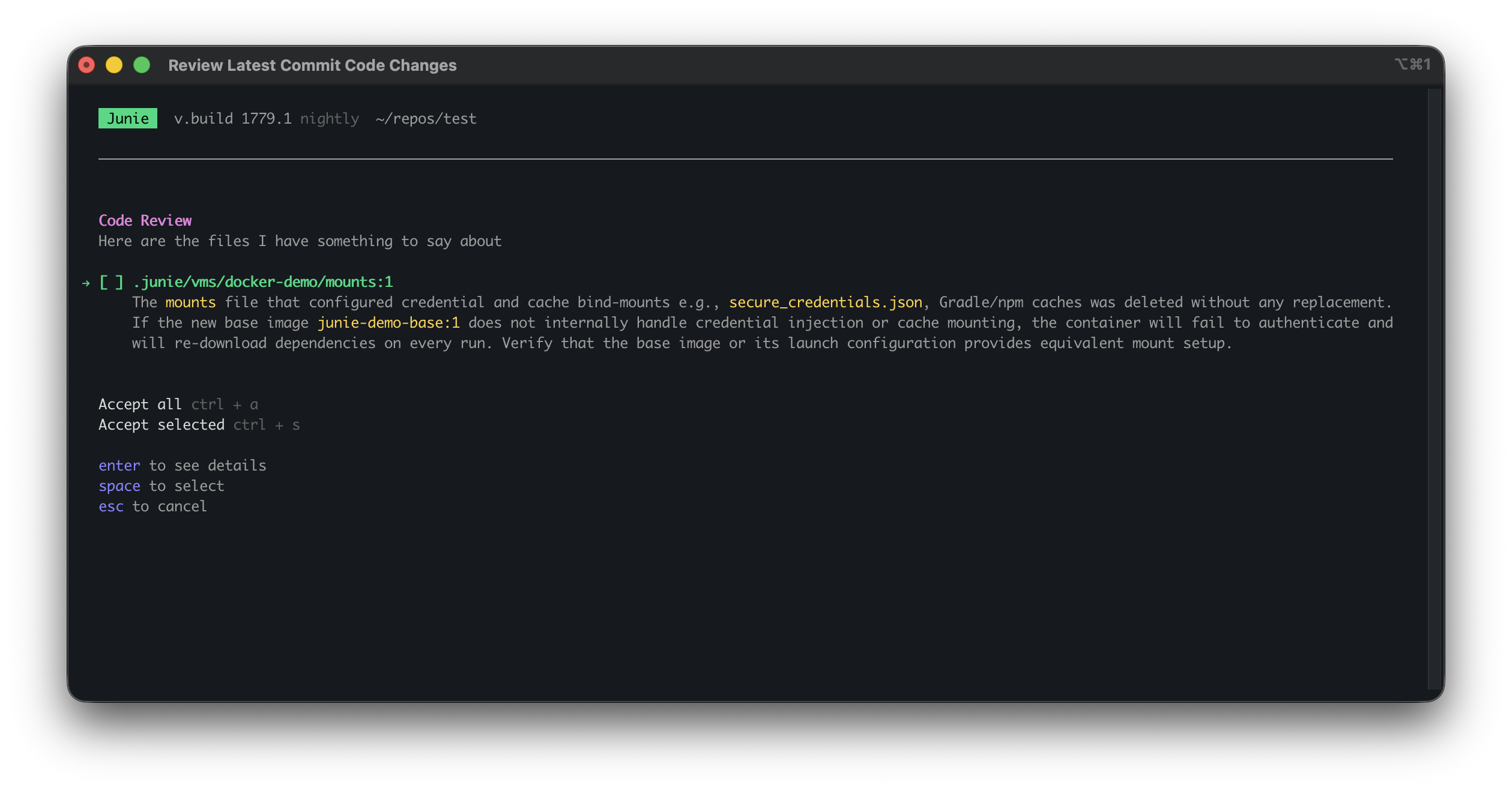
After the review is complete, Junie CLI presents the findings and lets you accept or dismiss individual comments.
Manage your account
Use the /account command to manage your credentials and API keys:
Select Continue with JetBrains account (or Manage JetBrains account if you're already signed in) to authenticate with Junie CLI via your JetBrains Account.
Select Use a Junie API key to run Junie CLI with usage-based billing.
To generate a
JUNIE_API_KEYaccess token, go to junie.jetbrains.com/cli.Select Use your own API key (or Manage your API keys) to add API keys for LLM providers like OpenAI, Anthropic, Google, xAI, or OpenRouter. See Bring Your Own Key (BYOK).
Select Use custom models and endpoints to connect custom or self-hosted LLM endpoints such as LiteLLM, Ollama, or LM Studio. See Custom LLM models.
Manage your session
Start another session
Use /new to start another live session in the same interactive Junie instance. Existing live sessions keep running in the background and stay available in Task history.
Use /new <prompt> to start another session with the prompt text already filled in.
View session transcript
To access the full transcript of the current session, including all previous prompts and the agent output, use the Ctrl+O shortcut. By default, Junie opens a continuously updated transcript.md file stored next to the session's events.jsonl file. Subagent transcripts are stored in the session's subagents folder and Ctrl+O opens the selected subagent transcript while you are viewing its task.
Use /settings and change Show transcript to Terminal to open the built-in Transcript view instead. In that view, use Esc to return to the main view.
Switch sessions and resume history
To search session history, switch between live sessions, or resume a saved session from a previous run, use /history to open Task history.
Junie stores the full session context, including LLM usage data and the history of user prompts and agent responses, for all your saved sessions.
For details on running several sessions and isolating their file changes, see Parallel sessions and worktrees.
Quit the session
To exit the Junie CLI interactive mode without losing login credentials, use /quit. Alternatively, you can exit Junie CLI by using Ctrl+C twice.
To restart Junie and reopen the same session (for example after an update download), use /restart.
Restart requires the managed launcher. Direct binary or JAR runs stay open and show an error instead. The initial --prompt or JUNIE_PROMPT is not submitted again after restarting.
The managed launcher gives each invocation its own private restart handoff in the system temporary directory ($TMPDIR, or /tmp on macOS/Linux; %TEMP% on Windows), so concurrent instances do not share session information. The handoff is consumed before relaunch and removed when the launcher exits. Forced termination or a machine crash can leave an orphaned directory, but later invocations never reuse it.
Continue the session in a browser
Use /remote to share the running Junie CLI session with the Junie web app and continue working on the same task from another device. For details, see Remote Mode.
Model and effort
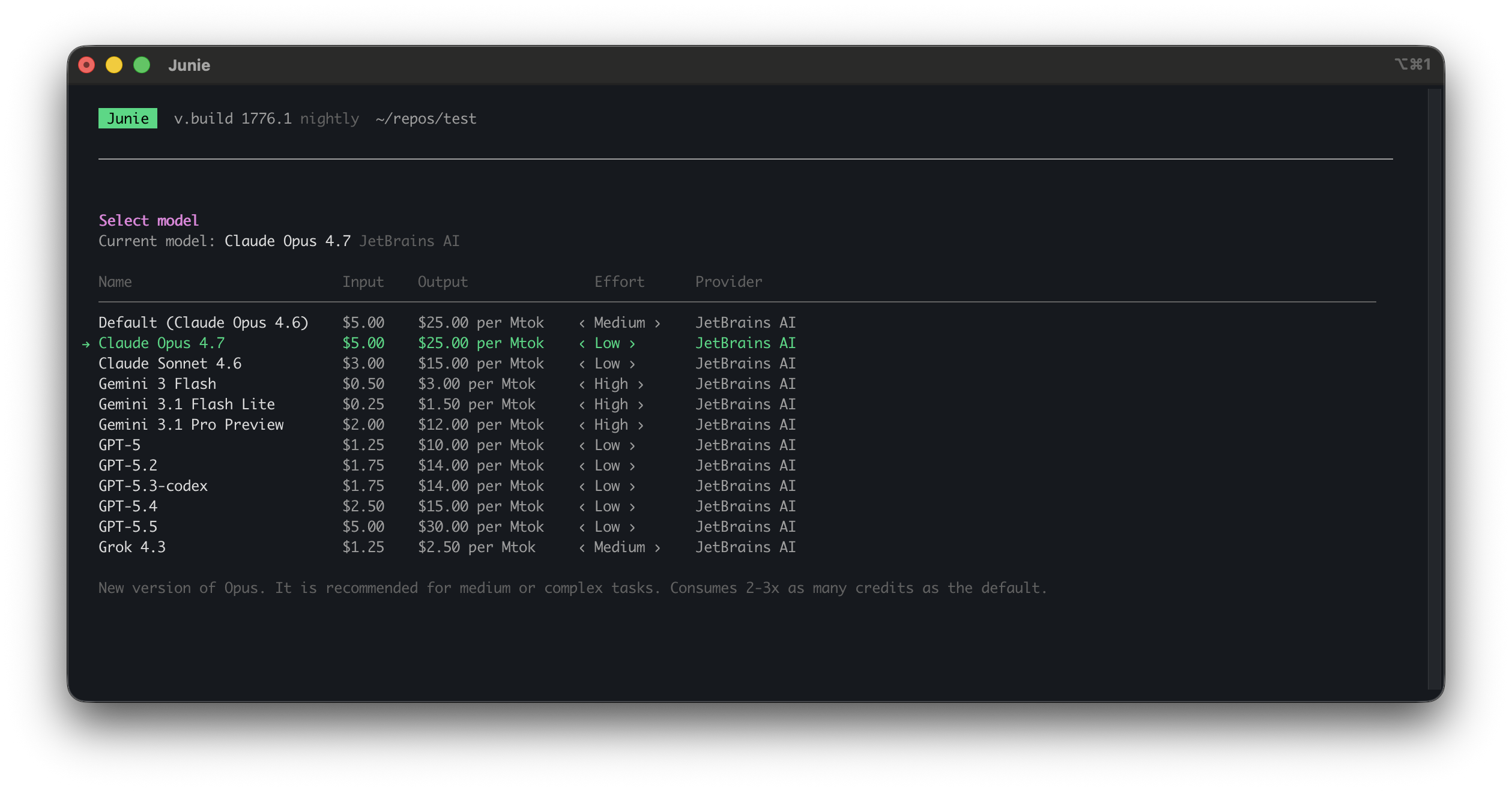
Use /model to select the LLM and, for supported models, the reasoning effort level used for the current session. Default is the recommended pre-selected option that uses a dynamically set model with the best price-quality ratio.
The selection of available models depends on your authentication method with Junie CLI. With BYOK, only the provider-specific models are available.
Effort level
For models that support adjustable reasoning effort (for example, recent Claude, GPT-5, and Gemini models), you can pick how hard the model thinks before answering. The set of supported effort levels (such as None, Minimal, Low, Medium, High, XHigh, Max) depends on the selected model.
You can change the effort level in two ways:
Use the
/modelcommand and pick an effort level alongside the model.Use the dedicated
/effortcommand to change only the effort level for the current model.
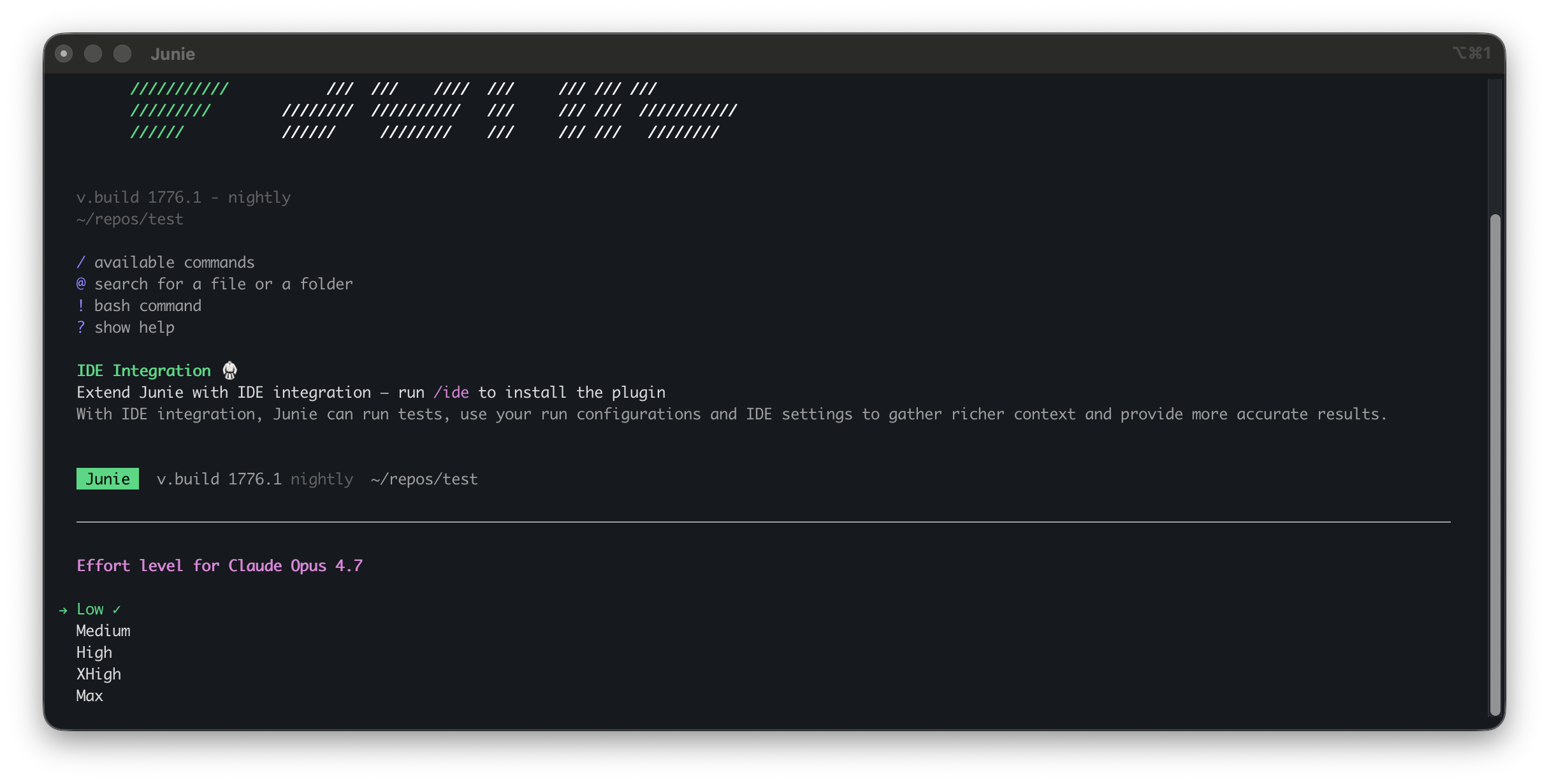
You can also set the effort level for a run with the --effort <level> CLI flag or the JUNIE_EFFORT environment variable, together with the model set by --model or JUNIE_MODEL. For details, see Model selection.
Token usage and costs
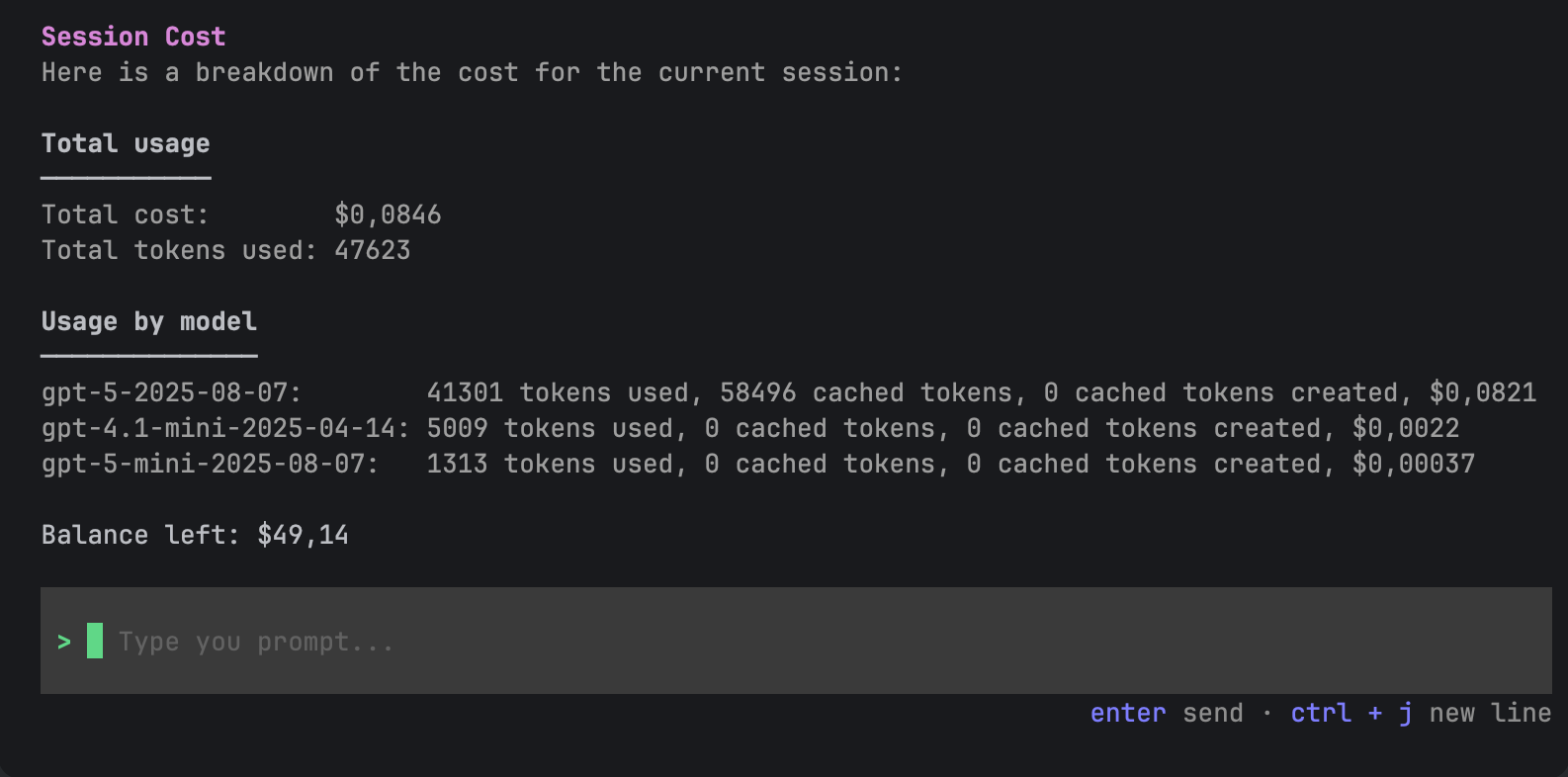
The /usage command shows the cost breakdown for the current session, including token usage, used models, and remaining balance.
Extend Junie CLI
Non-interactive (headless) mode
You can run Junie CLI in headless mode, that is, programmatically without interactive UI, in CI/CD environments and build pipelines.
To add Junie to your CI/CD script:
The junie command takes options and environment variables.
For more information and examples, see Headless mode.