Junie plugin settings
Action Allowlist
Use the Action Allowlist page to manage the list of actions that Junie runs without user approval. By default, Junie requires user approval for running terminal commands, MCP tools, and other types of actions that are considered to be sensitive by the coding agent.
Add allowed actions
To add a new action or action pattern to the list, click  on the toolbar and select one of the available action rule types. Depending on the rule type, you can specify the exact allowed action, a Regex covering multiple commands, or all actions of a specific type.
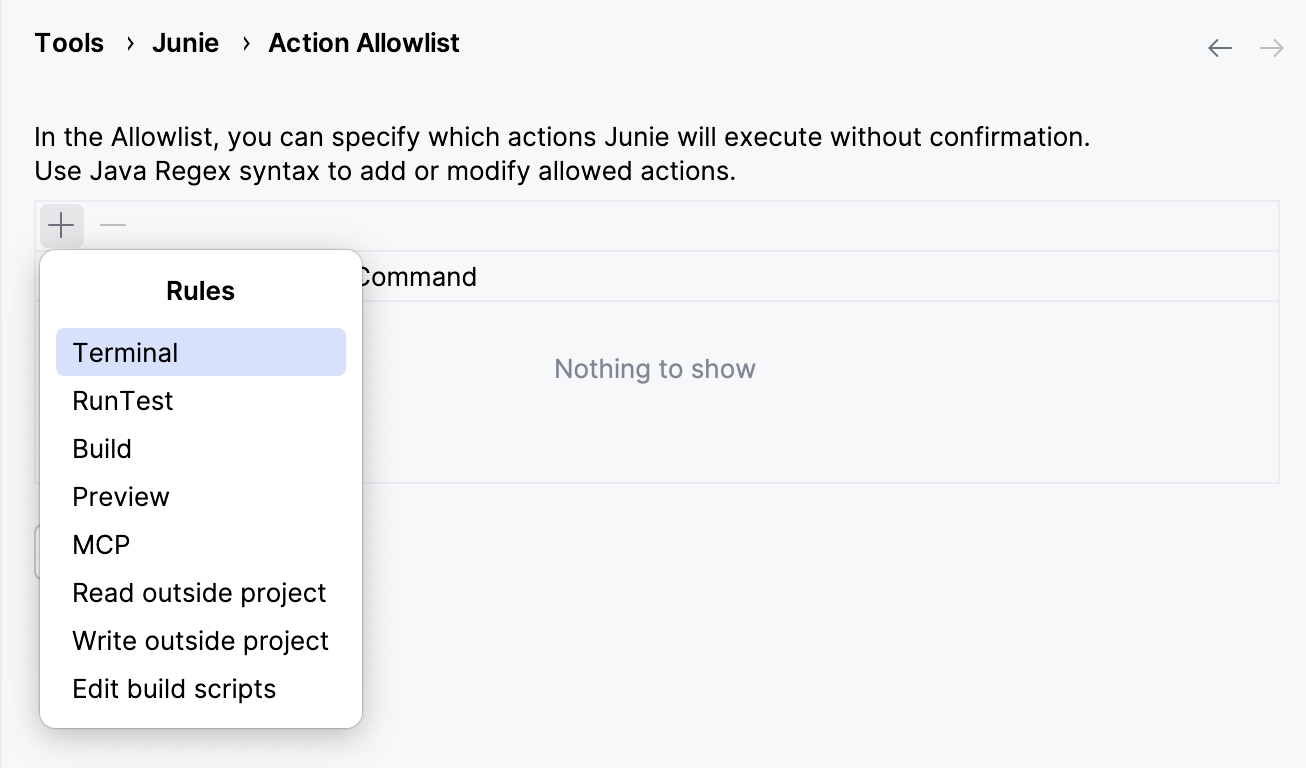
Terminal rules
For instructions on how to create regular expressions for terminal rules, see Regex syntax in terminal rules.
MCP rules
At the moment, adding an item of the MCP Rule type to the Action Allowlist will authorize Junie to run all MCP tools without user confirmation. Defining the specific MCP servers and tools that can be run without confirmation is not possible yet.
Other rule types
With other rule types, adding an item to the Action Allowlist will authorize Junie to run all actions of this type without approval.
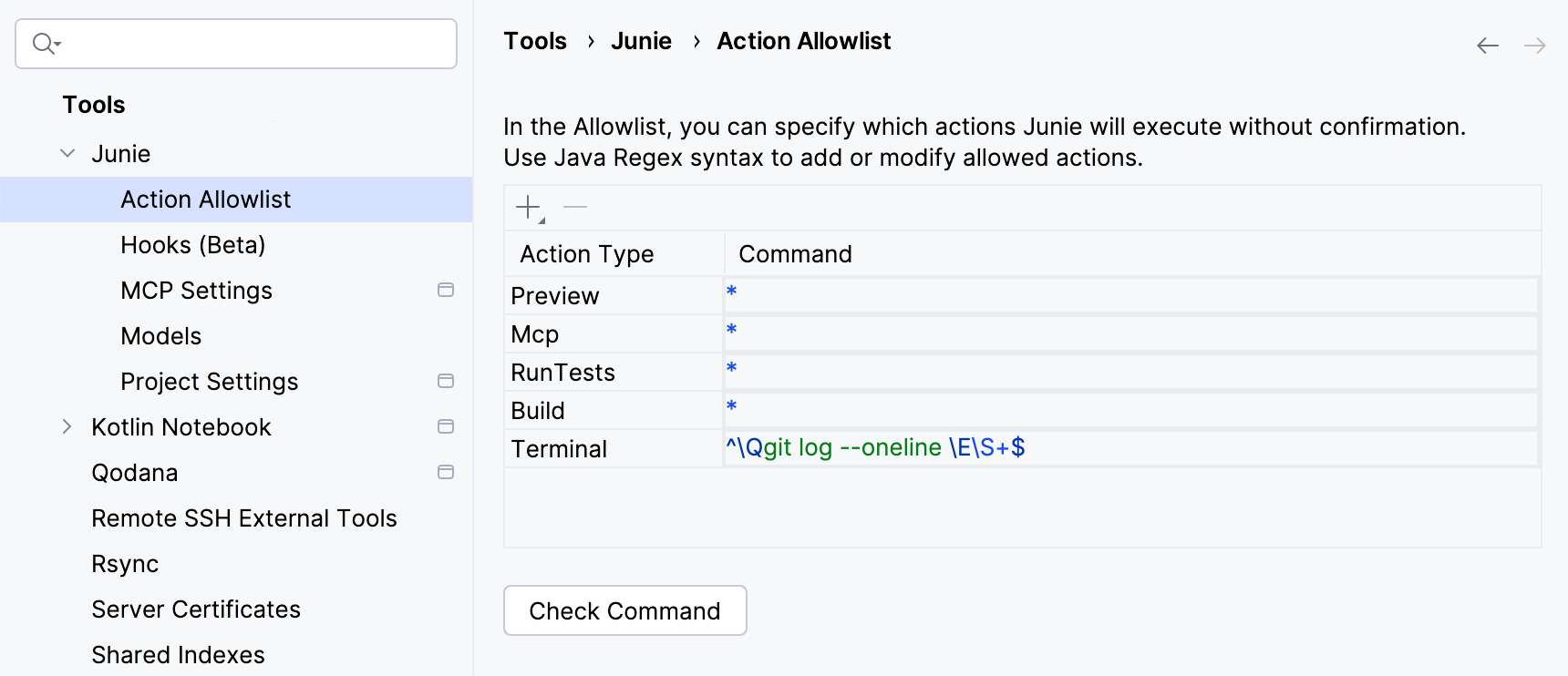
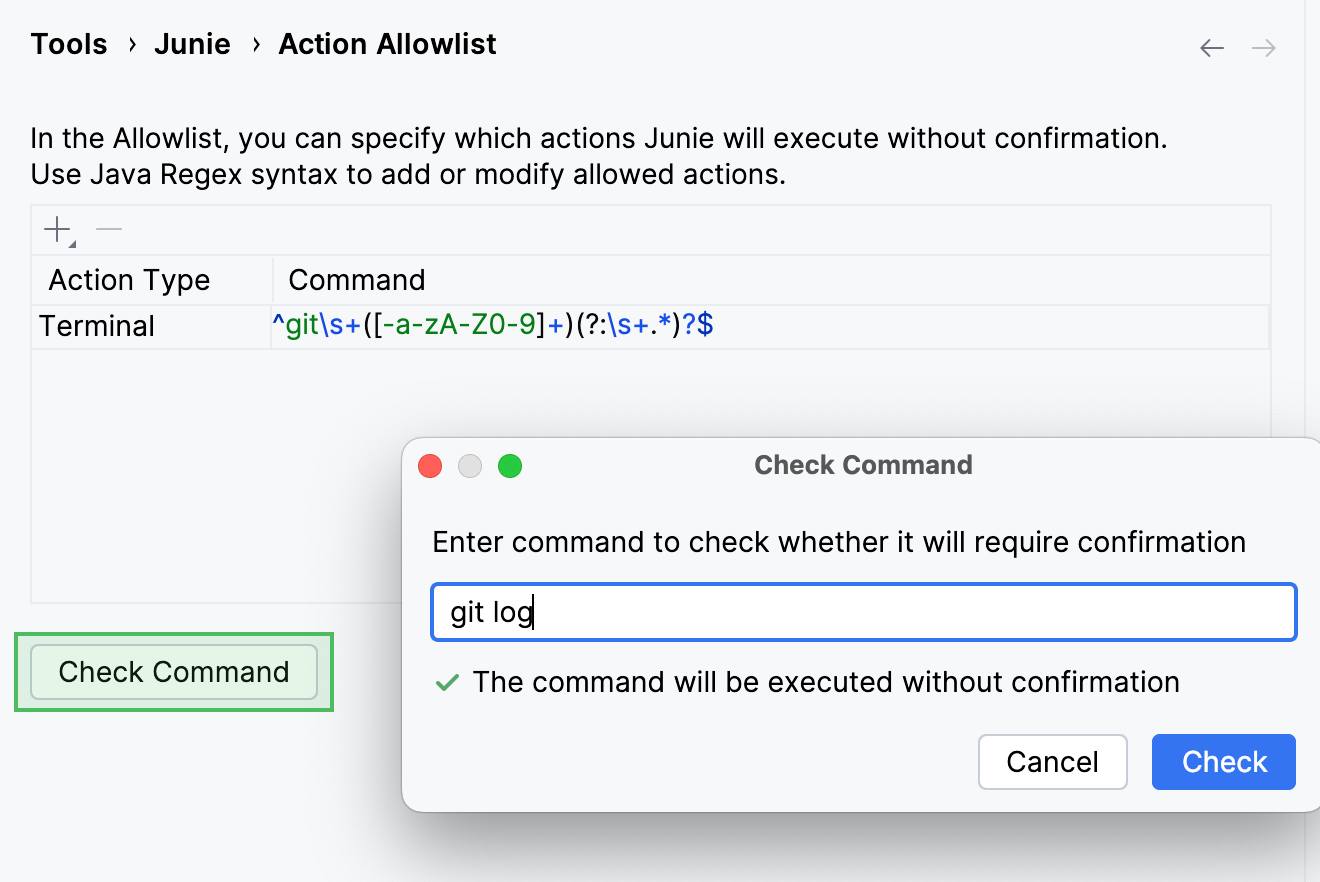
Check allowed commands
To check if a specific command is covered by the regular expressions on the list, use the Check Command button.
MCP settings
Use this page to connect Junie to Model Context Protocol (MCP) servers.
To add an MCP server configuration, click on the toolbar and edit the mcp.json file that opens.
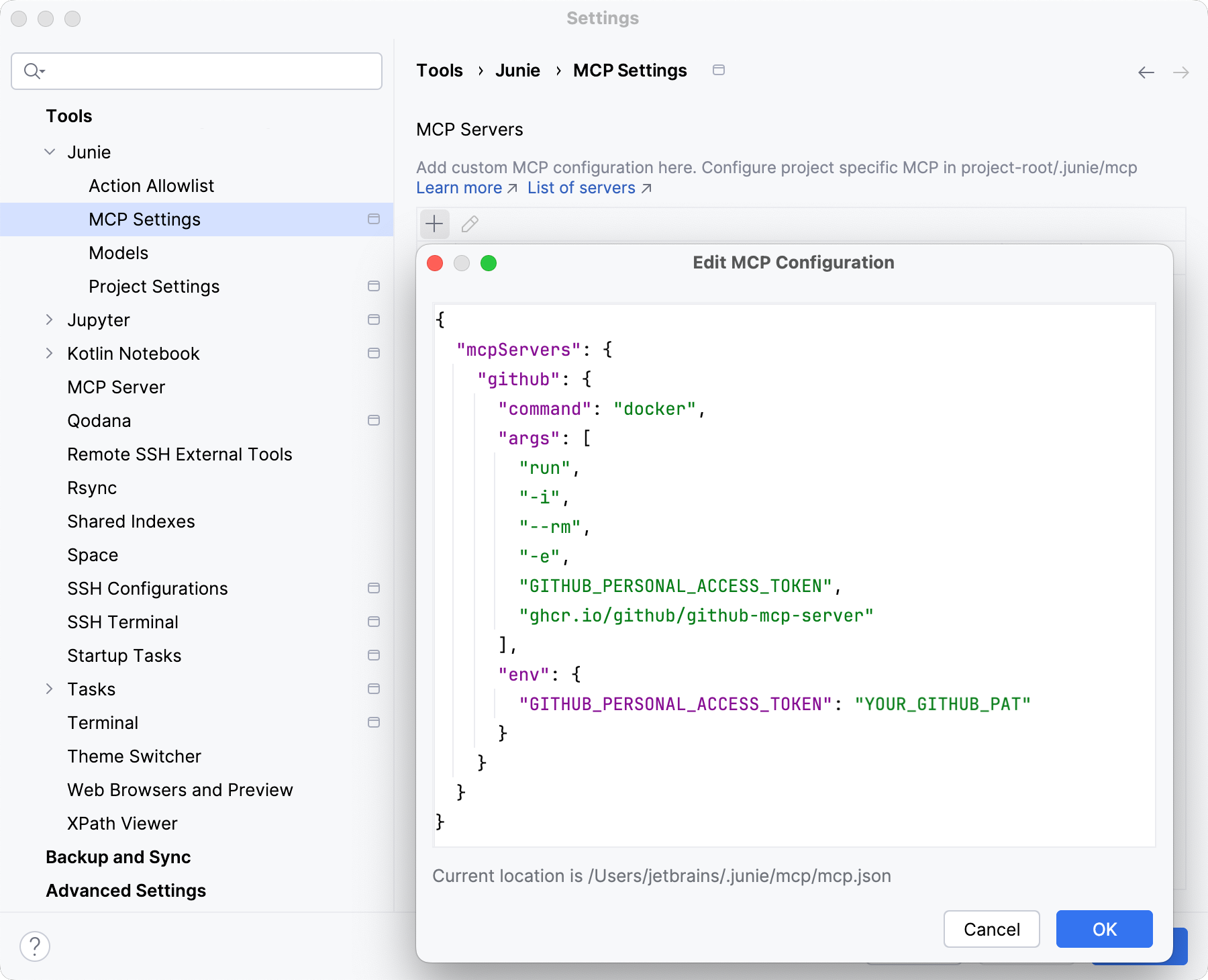
You can add as many MCP server configurations to the "mcpServers" key in the JSON file as required. For the JSON schema, refer to the documentation of the MCP server you are adding.
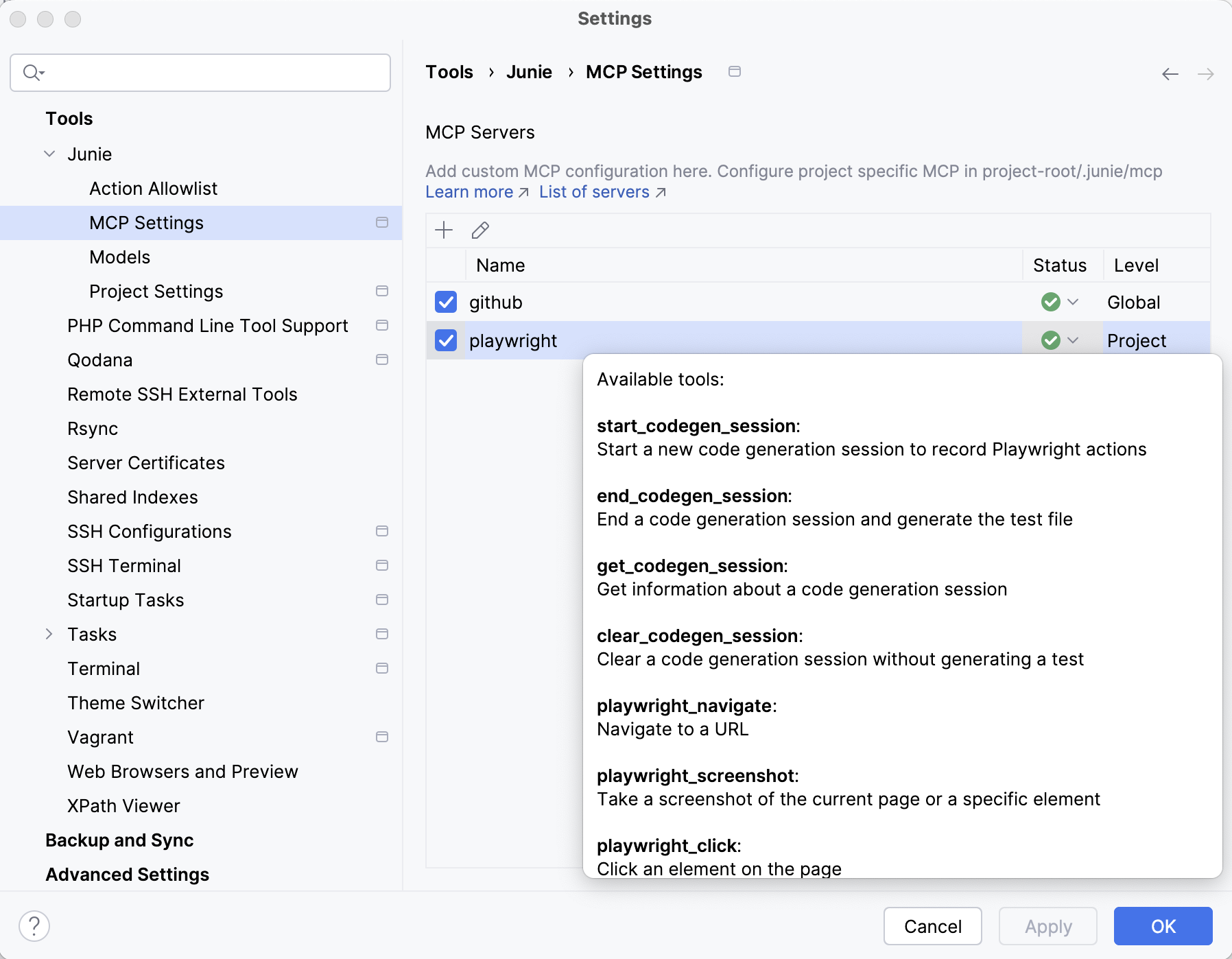
Each added server is displayed on the MCP Servers list with its connection status, the list of available tools, and indication where the configuration is stored (globally or at the project level).
Models
On this settings page, you can select the AI model used by Junie.
Default is the recommended pre-selected option with the best price quality ratio. The model behind the default option is set dynamically and may change as new models are released.
Project Settings
Item | Description |
|---|---|
Project path | The path to the directory where Junie is allowed to make changes. Junie will request confirmation to edit files or folders outside of this directory. |
Guidelines path | Path to the agent guideline file relative to the project path. Supported file types: |
Enabled technologies | Select checkboxes for the languages and technologies that Junie will work with. The list of available languages and technologies is determined by the JetBrains IDE that you are using. |
Frequency of questions from Junie | The A normal amount option is selected by default, enabling Junie to get back to the user and ask for the human input during the task processing. |