Junie vs Cursor is a choice between two ways of putting an AI agent to work. Junie is JetBrains' coding agent, available in JetBrains IDEs, as a CLI, in CI workflows, and through compatible ACP clients. Cursor is an AI-first editor where agent and chat interaction sit in the product's foundation rather than arriving as a plugin.
The environment around the agent shapes how you explore an unfamiliar codebase, how you validate what the agent changed, and how much of your existing toolchain comes along. That axis is narrower than "stay or switch," because Cursor also ships an integration that runs its agent inside JetBrains IDEs. The question is where each product's full experience lives, and which tools the agent reaches from there.
This article starts with a quick at-a-glance comparison, then addresses the core distinction between the products, how each handles common development tasks, how the surrounding environment changes the experience, and guidance for choosing between them. It compares practical workflows rather than naming a universal winner.
Junie vs Cursor at a glance
Both products cover the areas below, so each row describes how each one handles it rather than whether it can.
| Aspect | Junie | Cursor |
|---|---|---|
| Core approach | Coding agent that operates in JetBrains IDEs, the terminal, CI, and compatible ACP clients | AI-first development environment with built-in editor and agent interaction |
| Primary development environment | JetBrains IDEs and Junie CLI; compatible editors and IDEs through ACP | Cursor's own editor, with an ACP integration that also runs the agent inside JetBrains IDEs |
| Codebase exploration | Queries the IDE's language-aware project model for symbols, usages, and call hierarchies | Queries a semantic embeddings index of the repository, plus a fast text search engine |
| Planning | Supports Plan mode for read-only exploration and an editable design document before implementation | Supports Plan mode for reviewing an implementation plan before code changes |
| Multi-file editing | Edits multiple files autonomously, with changes visible as IDE diffs | Edits multiple files in agent mode, with changes visible in editor diff view |
| Terminal or command execution | Runs terminal commands and IDE run configurations as part of the task | Runs terminal commands directly through the integrated terminal |
| Testing and validation | Runs tests using supported IDE test tools or terminal commands, depending on the environment, and can use IDE inspections when connected to a supported JetBrains IDE | Runs test commands via the integrated terminal and works from the output |
| Code review | Diff review for agent-generated changes; dedicated /review workflow for local code review and automated reviews in CI | Inline diff review for agent-generated changes; Bugbot for automated pull request review |
| Repository-specific instructions | Supports AGENTS.md, .junie/playbook.md, and .junie/rules/*.md under documented discovery rules, plus global guidelines; .junie/AGENTS.md takes precedence when present | A set of structured rule files checked into the repository |
| CLI or remote workflows | Junie CLI available for Linux, macOS, and Windows, with headless run support | Cursor CLI for terminal and scripted runs, plus cloud agents that execute tasks remotely |
| Best fit | Developers who want a coding agent across JetBrains IDEs, terminal workflows, CI, and compatible ACP clients | Developers who want an AI-first editor experience and are willing to move their main coding environment |
Almost every row traces back to one decision: where the agent runs, and which tools it can call from there.
Two different approaches to AI-assisted development
The design intent behind each product shapes every workflow downstream.
Junie as a coding agent across JetBrains workflows
Junie is JetBrains' coding agent, available in supported JetBrains IDEs, as a standalone CLI, and through compatible ACP clients. Inside a JetBrains IDE, Junie works within the same environment you already use: reading project files, planning work, running code and tests, using supported IDE tools, invoking inspections, navigating symbol references, and attaching to a debug session where supported.
Junie draws on existing IDE intelligence when it explores your project. Rather than holding your codebase in memory, it asks the IDE for what it needs as it goes: resolving a symbol, finding usages, tracing a call hierarchy. It then validates its changes by running your actual test suite or build. After completing a task, Junie presents a diff you can review, accept, or roll back. You can also send follow-up instructions mid-task, and Junie incorporates them immediately.
For teams already invested in JetBrains language tooling, Junie joins that setup rather than replacing it. Outside the IDE, Junie CLI supports terminal, headless CI, scripted, and ACP-based workflows, complementing the deeper language-aware tooling available in the IDE-connected experience.
Cursor as an AI-first development environment
Cursor is built as an AI-first editor, with agent and chat interaction in the product's foundation. The editor, codebase search, and terminal all live inside Cursor, and the agent orchestrates them as it works through a task.
In Cursor's own editor, agent mode primarily gathers repository context through Cursor's codebase search and indexing. When Cursor runs inside a JetBrains IDE through ACP, the available context and tools can also include capabilities exposed by the host IDE. It retrieves relevant files, reads and edits across them, runs commands in the integrated terminal, and shows the result as diffs you can accept or reject. You can interrupt and redirect the agent while it works. Project conventions live in rule files checked into the repository, so the agent applies the same standards on every task.
Cursor asks for the opposite trade from Junie. Instead of joining your existing setup, it replaces it with one built around the agent. Its reach outside its own editor runs three ways: a CLI for terminal and scripted work, cloud agents that execute tasks on remote machines, and the Agent Client Protocol integration for JetBrains IDEs, which runs the agent inside IntelliJ IDEA, PyCharm, and others, editing project files and running commands in the IDE's terminal. Cursor describes it as carrying many of the same capabilities as its other surfaces, so treat it as a subset rather than the whole product.
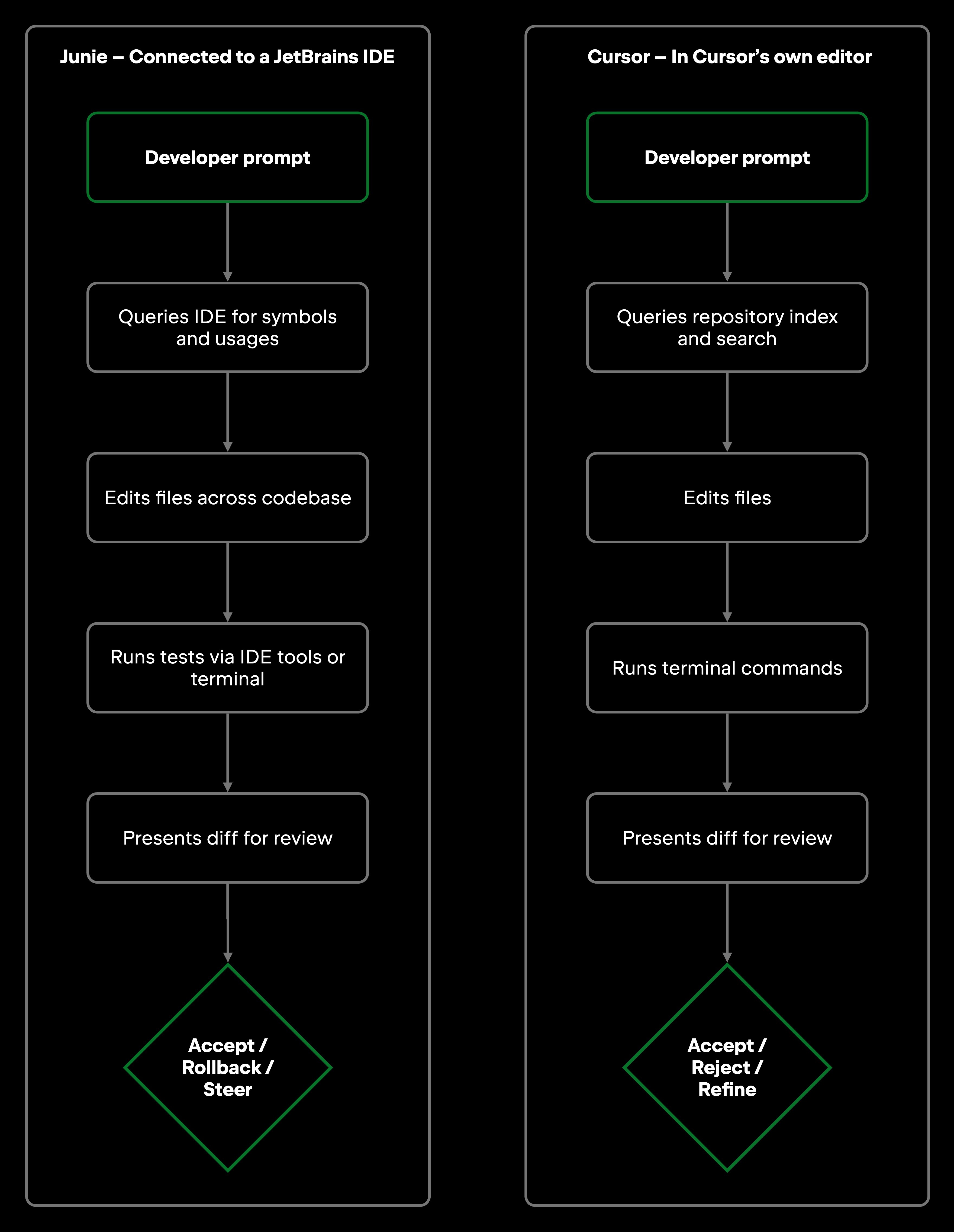
The loop is the same on either side. The context step and the surrounding environment are where they diverge.
Comparing everyday developer workflows
One task runs through the sections below. You need to add input validation to a REST API endpoint, update the service layer to handle the new constraints, and write tests covering both the happy path and the validation failures. It touches at least three files, needs consistent behavior across layers, and needs coverage to confirm nothing regressed.
Understanding an unfamiliar codebase
Before writing a single line, you need to understand what's already there. Where is the endpoint defined? What does the service layer look like? Are there existing validators you should extend rather than duplicate?
With Junie connected to a JetBrains IDE, you describe the task and let it explore the project through IDE navigation, requesting usages, call hierarchies, and symbol resolution the same way you would by pressing Go to Declaration or Find Usages in IntelliJ IDEA. In this configuration, Junie can query the same project index that powers code completion and navigation, so references resolve through the IDE's model of your code rather than through text matching.
Cursor gathers context by querying a semantic index of your repository, built from embeddings, alongside a fast text search engine for literal matches. In agent mode it retrieves the relevant files and symbols, reads their contents, and builds up enough context to form a plan.
Both retrieve context on demand instead of loading a project wholesale, and depending on project size, neither is guaranteed to gather everything relevant on the first pass. In the configurations described here, Junie connected to a JetBrains IDE can use the IDE's language-aware project model, while Cursor in its own editor combines semantic repository search with text search. Cursor can also run through ACP inside JetBrains IDEs, so this is a comparison of the products' primary environments rather than a fixed boundary between what each agent can access.
Implementing a multi-file feature
Take the API validation task. You'd prompt Junie with something like "Add request validation to the POST /orders endpoint. The quantity field must be a positive integer. Update the service layer and add tests covering valid and invalid inputs".
Junie starts by exploring the relevant files, then breaks the work into a multistep plan: edit the controller, update the service, write the tests. It executes across those files in a single pass. If you want a checkpoint before anything is written, plan mode explores the project read-only and produces a design document you can edit and approve, saved to a predefined location in the project so it outlives the session. If the generated test structure doesn't match your project's conventions, you can say so mid-task and Junie adjusts.
With Cursor in agent mode, you'd prompt similarly. Cursor searches the codebase, edits the relevant files, and runs commands as it works through the task, and you can interrupt and redirect it at any point. If you want to review the approach before implementation, Plan Mode provides a separate planning workflow. Because Cursor is built on the VS Code codebase, a developer arriving from VS Code can import settings, keybindings, and many extensions in one step, while a developer arriving from a JetBrains IDE leaves its inspections and plugins behind. The agent behaves much the same in either seat; the seat is what changes.
Refactoring existing code
Take the same service a few sprints later. The method your validation logic calls needs a clearer name, it is referenced across 15 files, and every call site has to move with it without breaking anything.
Junie can use the IDE's own refactoring tools as part of its execution. When it renames a symbol it works from the IDE's index to find every usage, respecting scope and handling overloads and same-named variables in different contexts, instead of pattern-matching strings. After making changes, Junie can also run inspections to catch remaining issues.
Cursor handles refactoring through multi-file edits in agent mode. It locates the affected call sites through its semantic index and text search, applies coordinated edits, and presents a diff covering the whole changeset. Because those edits are generated rather than derived from a language-level rename, verification falls to the test suite and the diff review instead of the refactoring engine. For many refactoring tasks, especially in smaller codebases, that works well.
Determinism is what separates them. A language-aware rename resolves references through the compiler's view of the project, and that counts most in strongly typed code, tangled module graphs, and generated sources. Either way, read the diff before you commit it.
Running tests and handling failures
The validation task ends in tests, and the first run of a generated test rarely passes. Each product runs them, through a different mechanism.
Junie can run tests using supported IDE test tools or terminal commands, depending on the environment and project. When connected to a supported JetBrains IDE, it can also draw on IDE capabilities such as run configurations and inspections. If a test fails, Junie can inspect the output, revise the implementation, and rerun the relevant checks.
When output alone doesn't explain the failure, both products have a dedicated debugging mode, and the two work differently. Junie's debug mode attaches to a live debugger session in the IDE: it manages breakpoints, inspects runtime state, and evaluates expressions in the paused execution frame. In that mode it investigates rather than edits, so it's a separate step from the fix-and-rerun loop above. On the IDE side it is available in IntelliJ IDEA Ultimate. Junie CLI has its own debug mode, which needs an IDE with debugging support connected, and the debug session can already be running or be launched through Junie.
Cursor runs test commands through the integrated terminal (pytest, go test, npm test, or whatever your project uses), then works from the terminal output to identify failures and iterate, across a wide range of languages and test frameworks. Its debug mode takes the instrumentation route instead of the debugger: the agent forms hypotheses about the cause, adds logging statements to test them, reads the runtime data while you reproduce the bug, proposes a targeted fix, then strips the instrumentation back out.
Junie CLI also has a separate /demo workflow for validating observable application behavior. It can build and launch an application, interact with its UI, and return a video, screenshots, and an HTML report for review. This is separate from unit testing and debugger-based investigation, and its demo environment requires Docker.
So the split isn't debugging versus no debugging. It's a paused frame you can interrogate against a reproduction you have to trigger. Junie's approach suits failures where you need to inspect state at a specific moment; Cursor's suits failures that are easier to characterize by watching them happen than by freezing them.
Reviewing agent-generated changes
The finished task is three changed files and a new test, and it still needs your review. Developers report doing exactly that. In the JetBrains Developer Ecosystem Survey 2026, 80% of agent users review agent-generated code often or always. When they do, 77% check functional correctness, 77% check code quality, 67% check solution architecture, 61% check adherence to project standards, and 61% check security. About 40% report that reviewing an AI-generated pull request takes more effort than reviewing comparable work from a colleague.
These figures describe AI-generated code generally and are not a comparison of Junie and Cursor. They do set the bar review support has to clear.
Both products show you the changeset before it lands, let you step through it file by file, and let you take a single change, take everything, or send it back with an explanation. Both can use repository-level instructions to apply project conventions before changes reach review. Both products offer explicit Plan modes that let you review a plan before implementation. In normal Agent mode, however, an editable plan and approval checkpoint are not guaranteed before every task.
The difference is where you do the reading and what you have at hand. Junie's diffs open in the IDE, so inspections, search, and type checking are available while you review, and you can run them over the changed files before you accept anything. Cursor's review bar sits in its own editor, stepping through the same changeset without leaving the environment the agent worked in.
How the development environment changes the experience
Choosing between Junie and Cursor is partly a choice about your surrounding environment, and that choice has real practical consequences.
If your team already works in JetBrains IDEs, Junie slots in without asking anyone to change their editor, keybindings, plugins, or project configuration. The agent becomes a participant in an existing workflow instead of a reason to adopt a new one.
Cursor makes sense when the AI-first experience itself is the priority. Moving your main environment gets you an editor where the agent, codebase search, and terminal were designed together. Developers who spend most of the day in an editor-and-terminal workflow tend to find that coherence worth the move.
Some practical considerations worth thinking through:
- Language and framework support: JetBrains IDEs have deep tooling for specific languages (Java, Kotlin, Python, Go, PHP, and more). Where your project relies on IDE-level inspections and refactoring for these languages, Junie can call the same tooling the IDE already provides.
- Debugging approach: the two debug modes want different things from you. Junie's needs an IDE with debugging support connected, and IntelliJ IDEA Ultimate for the in-IDE path; Cursor's needs a bug you can reproduce on command.
- CLI and remote work: Each product ships a CLI. Junie CLI supports headless use in CI and scripted workflows, multiple live sessions, and Git worktrees for isolating concurrent changes. Its Remote mode lets you control a running local CLI session from a browser while execution remains on your machine, which must stay awake. Cursor's CLI supports terminal and scripted workflows, while its cloud agents can execute tasks remotely.
- Editor extensions: the two plugin ecosystems barely overlap. If specific plugins carry your workflow, check what exists on the other side before you commit to the move.
- Team standardization: Engineering teams that already standardize on JetBrains IDEs can add Junie to that standard without replacing it. Teams open to a new shared environment get a consistent experience across members with Cursor.
Junie or Cursor: which fits your workflow?
Find the row that matches your priority, since the columns are conditions rather than scores.
| Your priority | Junie may be a better fit when… | Cursor may be a better fit when… |
|---|---|---|
| Keeping the current development environment | You already work in a JetBrains IDE and want to add agentic capabilities without changing your setup | You're open to moving your main coding environment to a new editor |
| JetBrains language and framework tooling | Your project relies on IntelliJ IDEA, PyCharm, GoLand, or another JetBrains IDE for inspections, refactoring, or language-specific features | Your language or framework doesn't require deep JetBrains IDE tooling |
| AI-first editor experience | You prefer your IDE environment and want the agent to extend it | You want an editor whose interface was designed around AI participation |
| IDE inspections and refactoring | Structural refactoring, code inspections, and type-aware navigation matter to your workflow | You handle these tasks manually or through language server features in the editor |
| Debugging and run configurations | You want the agent inspecting state in a live debugger session you can pause and interrogate | You'd rather the agent instrument the code and reason from runtime logs you can reproduce |
| Terminal and CLI workflows | You run Junie CLI for headless or remote tasks, or keep terminal work inside the IDE | You want the editor, terminal, CLI, and cloud runs to behave as one product |
| Multistep coding tasks | You want the agent to plan, execute, and validate across IDE or CLI workflows, with access to JetBrains IDE tooling when connected | You want the agent to plan, execute, and validate through editor and terminal in a single session |
| Reviewing local changes | You want to review diffs inside your existing IDE with full inspection tooling available | You're comfortable reviewing diffs inside Cursor's editor interface |
| Repository-specific rules | You want repository-level instructions through AGENTS.md and Junie-specific playbook or rule files, with documented precedence and global guidelines support | You want project conventions split across structured rule files in the repository |
| Team standardization | Your team already standardizes on JetBrains IDEs | Your team is considering adopting a shared AI-first editor environment |
Most setups match rows on both sides, so the two cases below describe where each product tends to land as a whole.
Consider Junie when
Junie fits if you want a coding agent that works across IDE, terminal, and CI workflows. Its strongest integration is with JetBrains IDEs, where it can use project-aware navigation, inspections, testing, and debugging, but Junie also runs independently through the CLI and compatible ACP clients.
It also gives you flexibility around model choice and inference, including custom or self-hosted model endpoints and local inference with Junie Local.
Consider Cursor when
Cursor fits if you want an AI-first environment where the editor, agent, codebase search, terminal, and cloud workflows are designed to work together.
It also extends beyond its own editor through its CLI, cloud agents, and ACP integrations, so the choice does not have to be tied to a single interface.
Choose the workflow, not a universal winner
Junie and Cursor both handle multistep coding tasks, but they approach the development workflow differently. Junie works across IDE, CLI, CI, and ACP workflows, with deeper access to JetBrains IDE tooling when connected. Cursor centers the experience on its AI-first editor while also extending to CLI, cloud, and ACP workflows.
The better fit depends on the tools your team relies on, the kinds of tasks you delegate, and how you prefer to review and validate agent work.
The best way to compare them is on your own repository. Pick a few representative tasks from your backlog and see how each handles them from investigation through review.
FAQ
Questions developers ask most often when weighing the two products.
What is the main difference between Junie and Cursor?
Junie is a coding agent available in JetBrains IDEs, the terminal, CI, and compatible ACP clients, with deeper access to JetBrains IDE tooling when connected to a supported IDE. Cursor is an AI-first development environment with its own editor, CLI, cloud agents, and an ACP integration for JetBrains IDEs. The practical difference is less about whether either product can leave its primary environment and more about which environment and tooling you want at the center of your workflow.
Is Junie a Cursor alternative?
Yes, although they start from different product models. Junie is a coding agent that works across IDE, CLI, CI, and ACP workflows, with especially deep integration when connected to JetBrains IDEs. Cursor centers the experience on its own AI-first editor while also extending its agent to other surfaces.
Do I need to leave my JetBrains IDE to use Cursor?
Not necessarily. Its ACP integration runs the agent inside JetBrains IDEs, carrying a subset of the standalone product, so check that the capabilities you rely on are among them.
Can Junie and Cursor both handle multi-file coding tasks?
Yes. Both plan and execute across files, run commands, and validate the result. The difference is which tools they call to do it.
Which tool is better for large codebases?
It depends on the codebase and the task. When connected to a JetBrains IDE, Junie can use its language-aware project model for symbols, usages, and relationships. In Cursor's own editor, Cursor uses semantic repository search alongside text search to retrieve relevant code.
Can Junie and Cursor run tests and terminal commands?
Yes. Junie can run tests and commands using terminal tools and, when connected to a supported JetBrains IDE, can also use available IDE test and run capabilities. Cursor runs test and development commands through its terminal-based tooling.
Do Junie and Cursor support code review?
Yes, but distinguish reviewing an agent's edits from asking an agent to review code. Both products let developers inspect generated changes before accepting them. Junie also provides a dedicated /review workflow for local code review and supports automated reviews in CI, while Cursor provides Bugbot for pull request review.
Which tool is better for teams already using JetBrains IDEs?
Junie is the more practical starting point, since it adds the agent to the environment your team already runs. Evaluate both against your own tasks before committing.
Can developers use both Junie and Cursor?
Yes. Junie CLI runs tasks outside the IDE and Cursor's agent can run inside one, so neither has to own the machine.